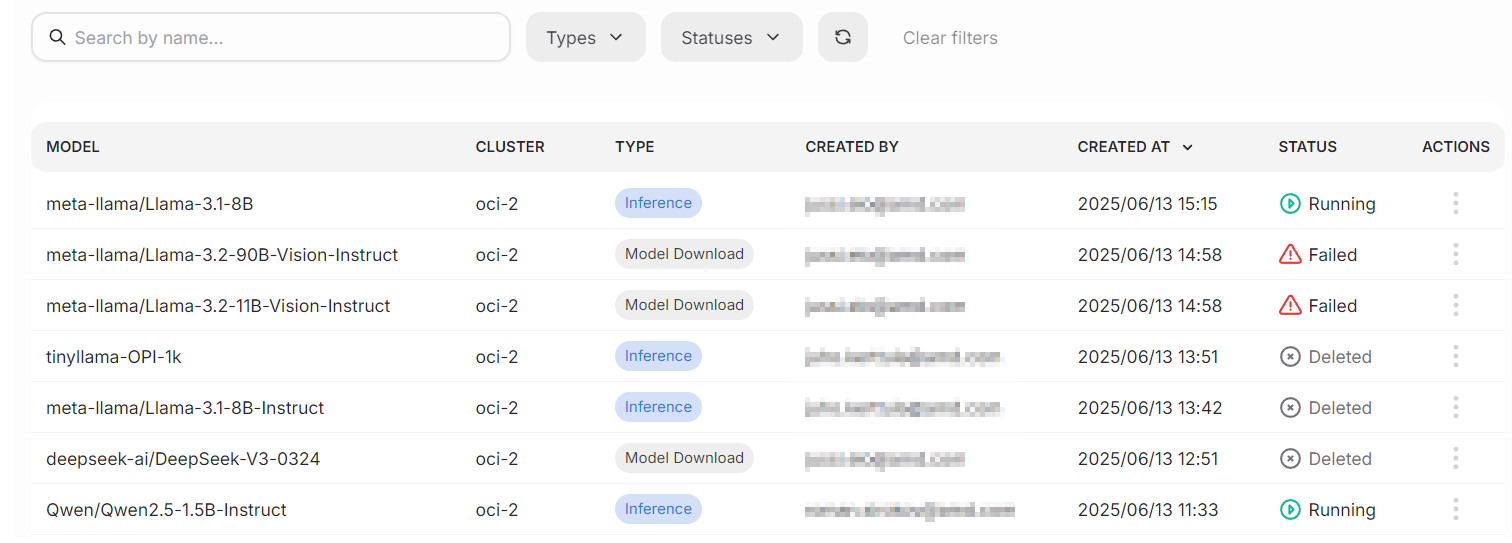
Model Catalog#
The Model Catalog provides access to all available models that can be deployed or fine-tuned.
The catalog is organized into three main sections: AIM Catalog, Custom models, and Deployed models. The AIM Catalog features AMD Inference Microservices (AIMs)—optimized containers that deliver standardized, production-ready inference services for AMD hardware. The Custom models section lists all custom and fine-tuned models, while Deployed models displays currently active model deployments and their operational status.
Definitions#
A model can be one of the following types:
Base model: A foundation model trained on vast amounts of data.
Fine-tuned model: A model that has been customized through additional training for specific use cases or domains.
A model can be in one of the following states:
Pending: The model is being prepared for deployment or use.
Ready: The model has been successfully deployed.
Failed: There was an issue loading the model, and it is not available for use.
AIM Catalog#
The AIM Catalog showcases all available AMD Inference Microservices, which can be filtered using the search field and tags dropdown for easy discovery.
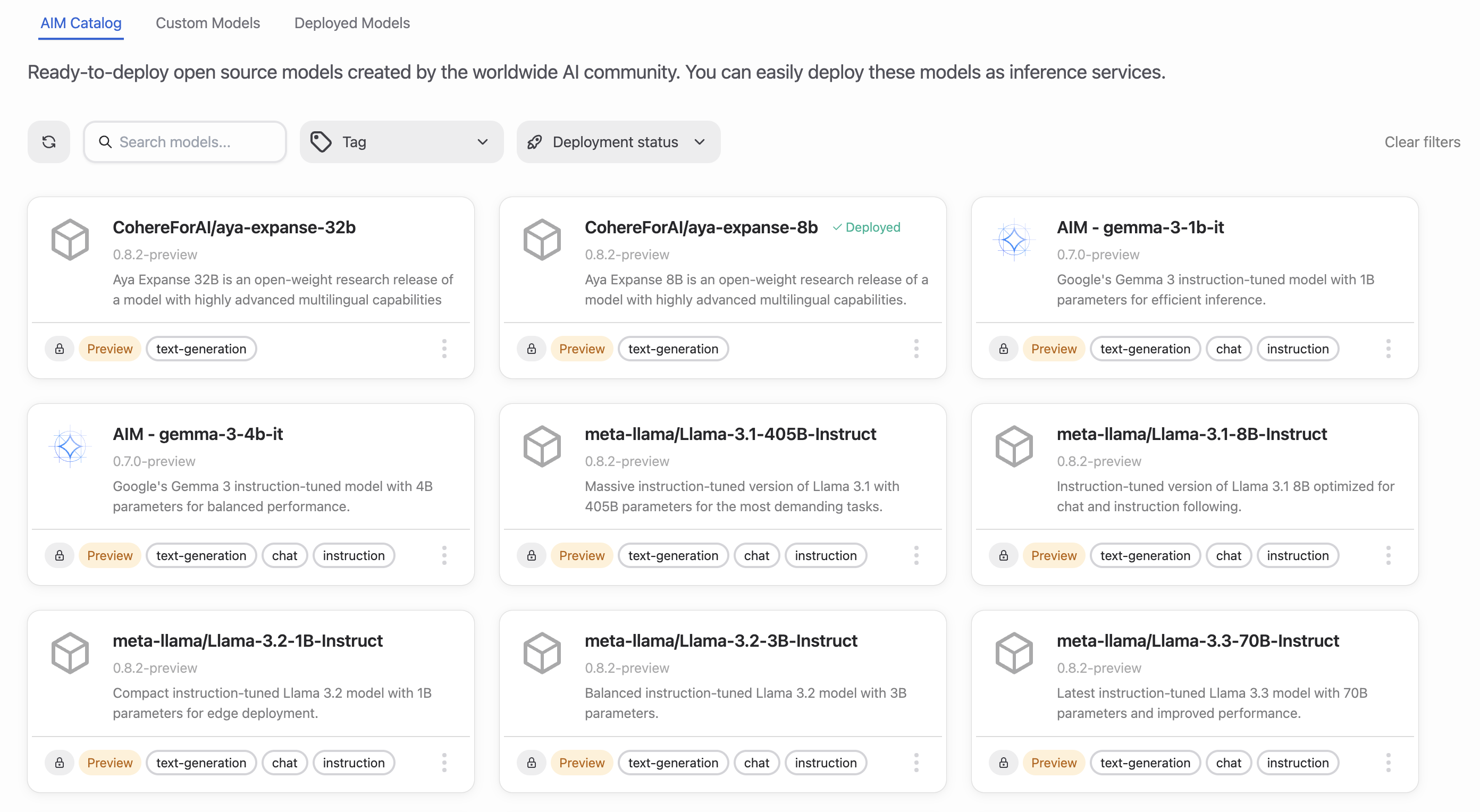
AIMs are specialized containers that provide standardized, production-ready inference services optimized for AMD Instinct™ GPUs. Each AIM includes model weight download and caching functionality, automatic hardware detection, and optimized inference profiles for different GPU configurations and precision formats.
AIMs deliver superior performance compared to generic model deployments through their profile-driven architecture, which automatically selects optimal settings based on your specific hardware configuration.
Each AIM card displays essential information including the model name, detailed description, and capability tags. A special icon next to the tags indicates when a Hugging Face token is required for access.
Available actions for each AIM:
Deploy: Deploys the AIM to create an inference endpoint. The deployed model will appear as a workload in the Workloads section.
Connect: (Available after deployment) Opens a set of parameters that can be used for connecting your applications to the model. For chattable models, this lets you use the model in the chat window.
Note
Fine-tuning capabilities are not available directly from the AIM Catalog. To fine-tune models, work with compatible base models in the Custom models section.
The platform development team curates and maintains all AIMs in the catalog to ensure quality and compatibility.
Custom Models#
The custom models section manages all available custom models, including base models and fine-tuned variants created within your project.
Warning
Custom model upload for proprietary solutions (such as custom business intelligence models) is not currently supported.
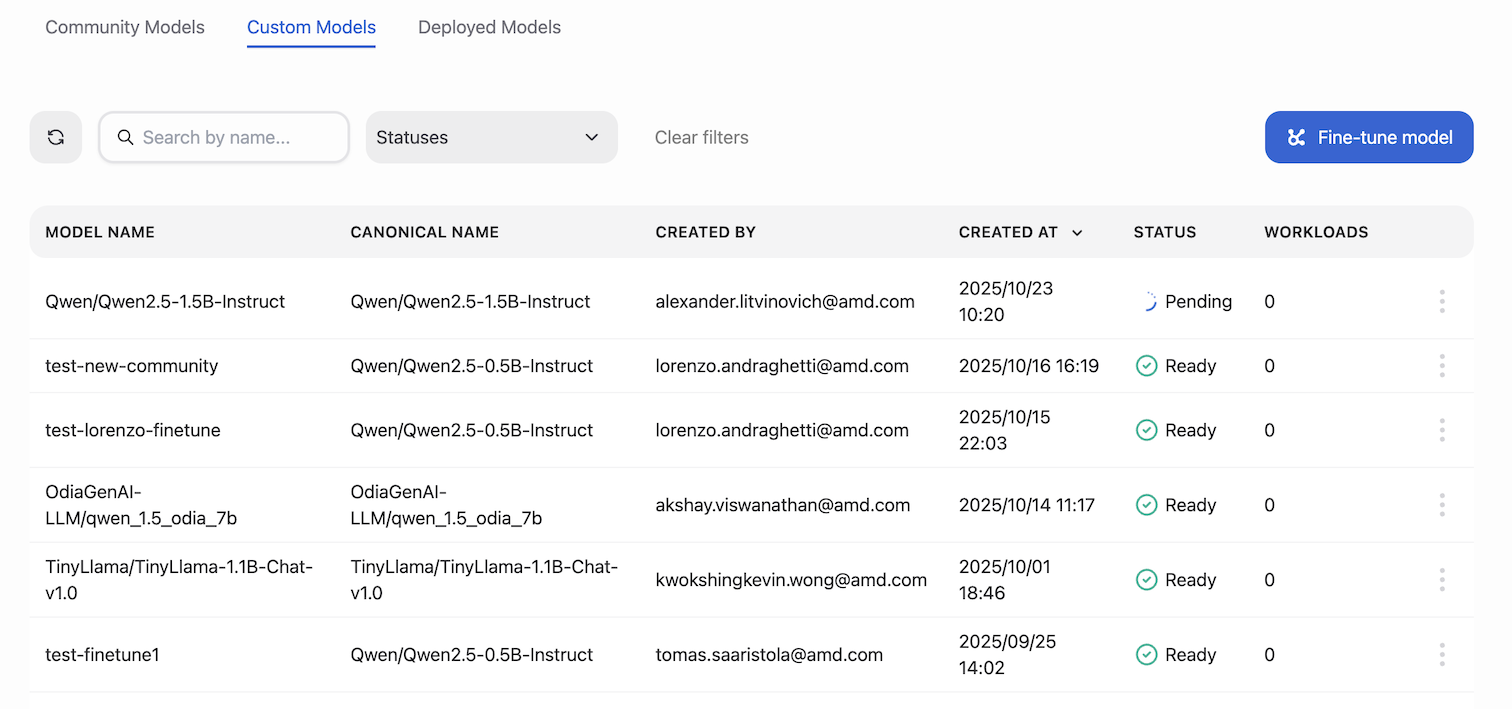
The Fine-tune model button launches the fine-tuning workflow for creating specialized model variants. Each model’s action menu provides access to key management functions:
Show details: Opens a comprehensive information dialog about the model
Fine-tune: Initiates the fine-tuning process for model customization
Deploy: Provides step-by-step deployment instructions
Delete: Permanently removes the model (irreversible action—use with caution)
Deployed Models#
The Deployed models section provides a centralized view of all active model deployments, including both AIM-based and custom model instances. Each deployment displays its current operational status and key metrics.
From the actions menu, users can view model details or undeploy models. The filter bar offers various ways to select a subset of models.