LoRA adapters#
A LoRA (Low-Rank Adaptation) adapter is a lightweight, trained layer that customizes a base model’s behavior without modifying the base model’s weights. Because an adapter is small, you can keep many adapters for a single base model, attach one or more of them to a deployment, and serve them alongside the base model instead of deploying a separate full copy of the model for every use case.
AMD AI Workbench gives each project a dedicated LoRAs page where you can produce adapters through fine-tuning, review their status and compatibility, and remove the ones you no longer need. This page describes that workflow. For general fine-tuning concepts and the full-model workflow, see Training and Fine-tuning.
When to use a LoRA adapter#
The AMD AI Workbench fine-tuning flow offers three fine-tuning types. Choosing the right one depends on whether you want a reusable adapter, a self-contained model, or maximum accuracy:
LoRA — produces a standalone adapter that you attach to a compatible base-model deployment at serving time. Adapters are small and quick to train, and several can share one deployed base model, which saves GPU resources.
Merged — trains with LoRA and then merges the adapter back into a complete, ready-to-deploy model. Choose this when you want the efficiency of LoRA training but prefer a single self-contained model as the result.
Full — updates every weight in the model for maximum accuracy on specialized tasks, at the cost of a larger training job and a full-sized model artifact.
Only the LoRA type produces a reusable adapter that appears on the LoRAs page. Merged and Full both produce models, which appear on the Custom models tab of the Models page.
Note
The fine-tuning type available for a base model depends on the model. Adapter-capable base models (for example, Qwen/Qwen3-32B, google/gemma-3-27b-it, and mistralai/Mixtral-8x7B-Instruct-v0.1) offer all three types. Some base models are configured for full-parameter training only and do not offer the LoRA or Merged options.
Viewing project adapters#
Navigate to the LoRAs page under Fine-tuning in the left navigation. The page lists every registered LoRA adapter in the current project, along with any LoRA fine-tuning jobs that are still running. When a project has none, the page shows “This project has no LoRA adapters or active LoRA fine-tuning jobs.”

Each row shows:
Name — the adapter’s display name.
Status — the adapter’s lifecycle state. A row that is still training moves through
Pending→Running, and a finished adapter becomesReadyonce its weights are available.Deployments — the deployments currently serving the adapter, or a dash when it is not in use.
Created at and Created by — when the adapter was produced and by whom.
Use the search box to find an adapter by name, and the Base models filter to narrow the list to adapters compatible with a particular base model. Select Clear filters to reset the view.
Note
The list shows only adapters that are registered in the project. Adapter weight files left in project storage without an owning adapter record are not shown.
Creating a LoRA adapter through fine-tuning#
Select Fine-tune model on the LoRAs page to open the Create fine-tuned model wizard. The wizard walks you through five steps: Model, Training, Target, Hyperparameters, and Check.
Step 1: Model#
Select the base model you want to fine-tune from the Base model dropdown. If the selected model requires access credentials, a Hugging Face token field appears; provide a new token or select an existing one from your project secrets. For more information about managing secrets, see the Secrets documentation.
Step 2: Training#
Choose a Fine-tuning type and then select up to 10 datasets to train on.
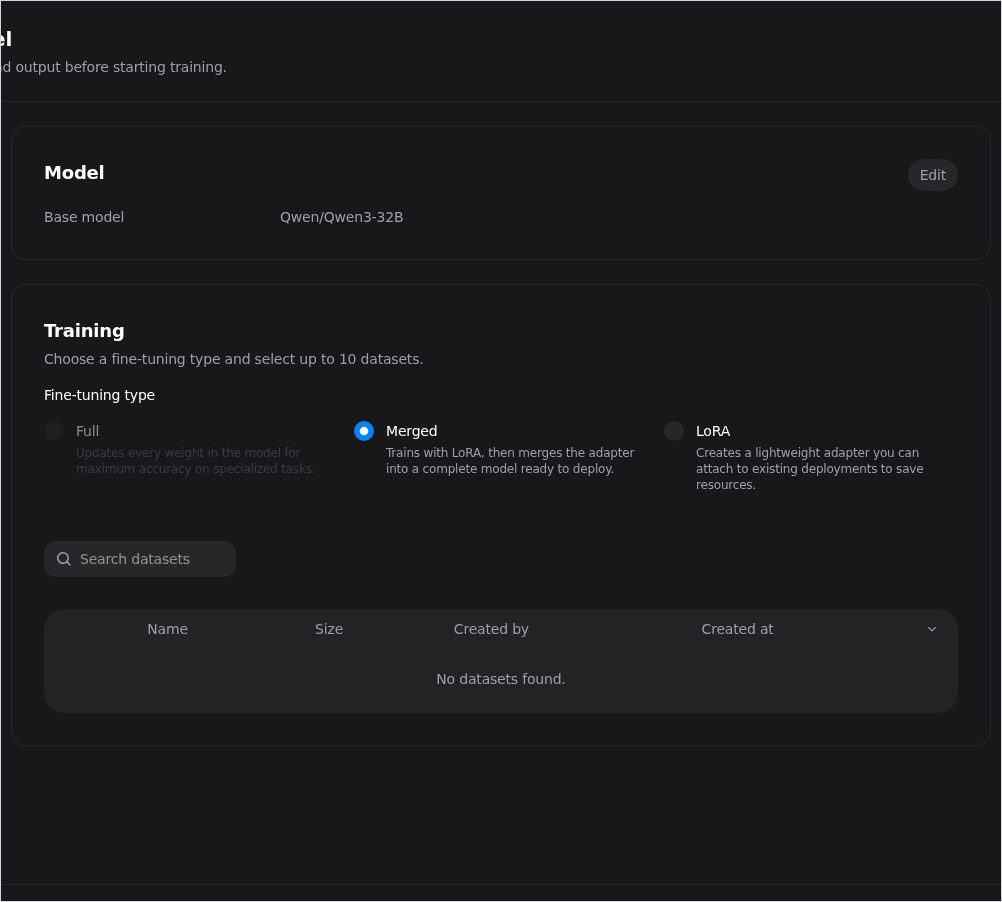
To produce a reusable adapter, select LoRA. For an adapter-capable base model the type defaults to Merged, so you must switch it to LoRA to keep the adapter on its own. Then select one or more datasets from the list. The datasets must already exist in the project; see Datasets for how to upload them.
Step 3: Target#
Provide a LoRA name and an optional LoRA description. The name identifies the adapter on the LoRAs page and is required to continue.
Note
When the fine-tuning type is Merged or Full, this step is labeled for a model name instead, because the output is a model rather than an adapter.
Step 4: Hyperparameters#
Hyperparameters are optional. Leave the Customize hyperparameters toggle off to let the platform select certified defaults for the base model, or turn it on to adjust them.
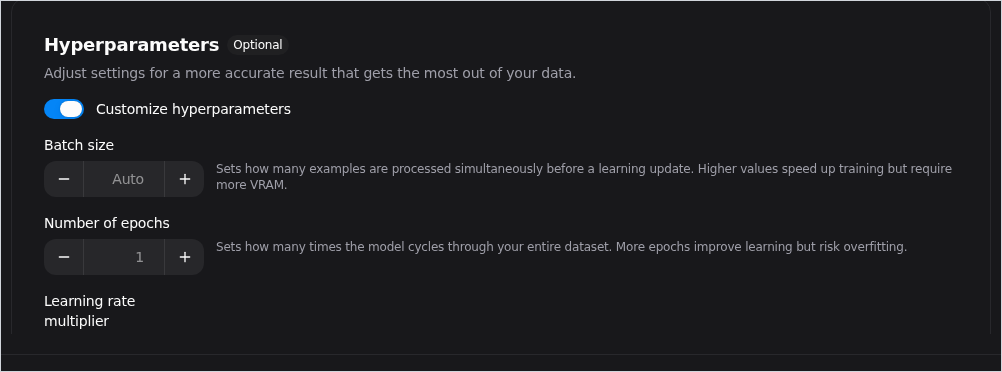
The customizable settings are:
Batch size (default: Auto) — how many examples are processed before each learning update. Higher values may improve training stability, but can also slow down training.
Number of epochs (default: 1) — how many times training cycles through the entire dataset. More epochs improve learning but risk overfitting.
Learning rate multiplier (default: 1.0) — adjusts the step size for learning. Higher values speed up training but can cause instability if set too high.
For the LoRA fine-tuning type, an additional LoRA specific parameters group is available:
Alpha (default: 16) — controls the adaptation strength. Higher values make the model rely more heavily on the new training than on its base knowledge.
Rank (default: 64) — sets the adapter’s learning capacity. Higher values capture more complex patterns but use more memory and produce larger adapter files.
Dropout (default: 0.05) — prevents overfitting by randomly dropping connections during training, encouraging the model to generalize rather than memorize the data.
If you are unsure what values to use, leave the toggle off and the platform applies the base model’s default settings.
Step 5: Check#
Review the full configuration — base model, fine-tuning type, datasets, adapter name, and hyperparameters — and select Start training to submit the job.
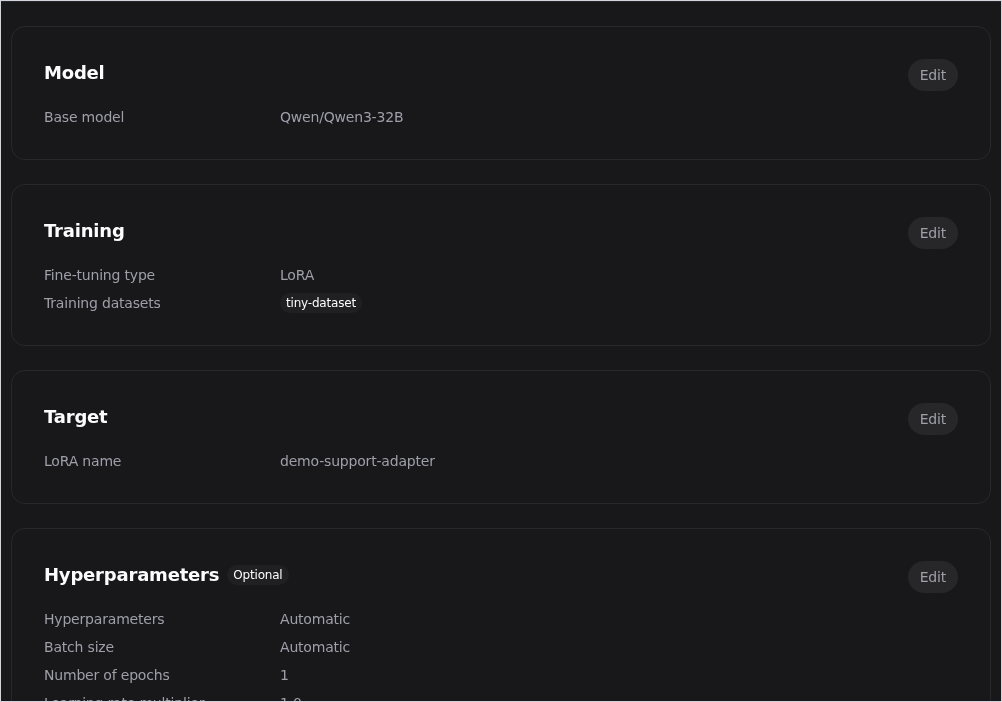
After you start training, the adapter appears on the LoRAs page with a Pending status that progresses to Running while the job trains. Training can take a while depending on the base model and dataset, so you can leave the page and return later. When the run finishes, the adapter’s status becomes Ready and it can be served.
Note
A fine-tuned adapter is independent of the base model it was trained against. Removing that base model from the project does not remove the adapter.
Serving an adapter#
A finished adapter can be attached to a deployment of a compatible base model. When you deploy such a base model from the AIM Catalog, the Personalization step of the deployment flow lets you turn on Enable dynamic LoRA adapters and select one or more compatible adapters to serve alongside the base model. Because the base model and its adapters share one deployment, you do not need a separate deployment per adapter.
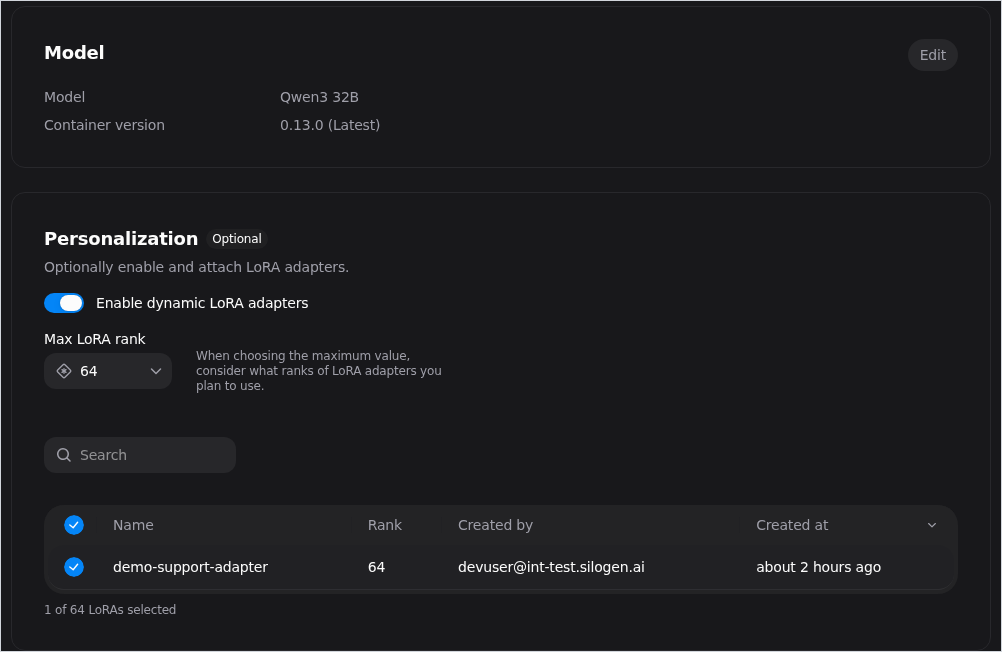
Set Max LoRA rank to a value at least as high as the rank of every adapter you intend to attach; selecting an adapter with a higher rank raises the maximum automatically. Only adapters compatible with the chosen base model are offered.
A few rules govern which adapters can be attached:
An adapter can be served only by a base model it is compatible with. Attaching an adapter to an incompatible base model is refused with an explanation.
The selected serving profile must support adapters. If it does not, the deployment is refused.
If you request several adapters and any one of them cannot be served, the whole deployment is refused and the response identifies which adapter was rejected.
Once the deployment is serving an adapter, you can direct an inference request at that adapter by passing the adapter’s name as the model field in the standard inference request. For the full deploy-and-inference walkthrough, see How to Deploy a Model and Run Inference and Personalization: Attaching LoRA Adapters.
Deleting an adapter#
To remove an adapter you no longer need, open the three-dot action menu on its row in the LoRAs page and select Delete.
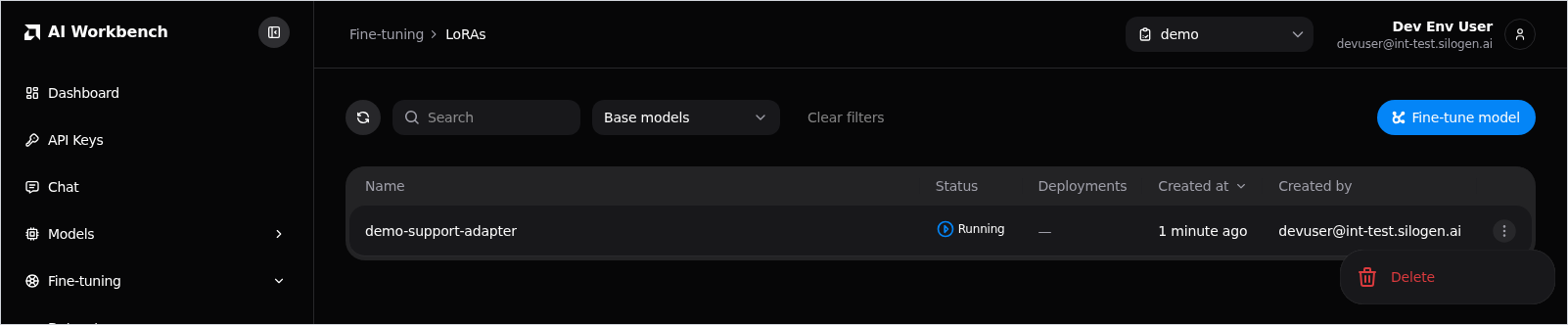
Deletion is permanent and reclaims the project storage the adapter’s files occupy. An adapter that is currently in use by a deployment cannot be deleted; the action is blocked with an explanation of what is still using it. Undeploy the adapter everywhere it is in use, then delete it.