Training and Fine-tuning in the AMD AI Workbench#
Fine-tuning a model allows you to customize it for your specific use case with your data. We provide a certified list of base models that you can fine-tune, and allow you to customize certain hyperparameters to achieve the best results.
Fine-tuned models can be deployed and subsequently used for inference once the model weights have been computed.
AMD AI Workbench supports three fine-tuning types: Full (updates every weight for maximum accuracy), Merged (trains with LoRA, then merges the adapter into a complete model ready to deploy), and LoRA (produces a lightweight, reusable adapter you can attach to a compatible base-model deployment). This page covers the Full and Merged workflows, which both produce models. For the LoRA adapter workflow — producing, serving, and managing adapters — see LoRA adapters.
Getting ready to fine-tune your model#
Prerequisites for new projects#
Important
Required for New Projects: Fine-tuning requires access to internal cluster storage. If you are working with a new project, ensure your project has access to minio-credentials-fetcher secret which you can find under the Secrets page and provides the fine-tuning operations access to storage space for datasets and model weights.
For detailed instructions on managing Secrets, see the secrets page.
Uploading training data#
One of the first steps toward fine-tuning your model is to upload training data to our platform. The training data should represent a wide range of conversations that you would like your model to respond to as part of inference.
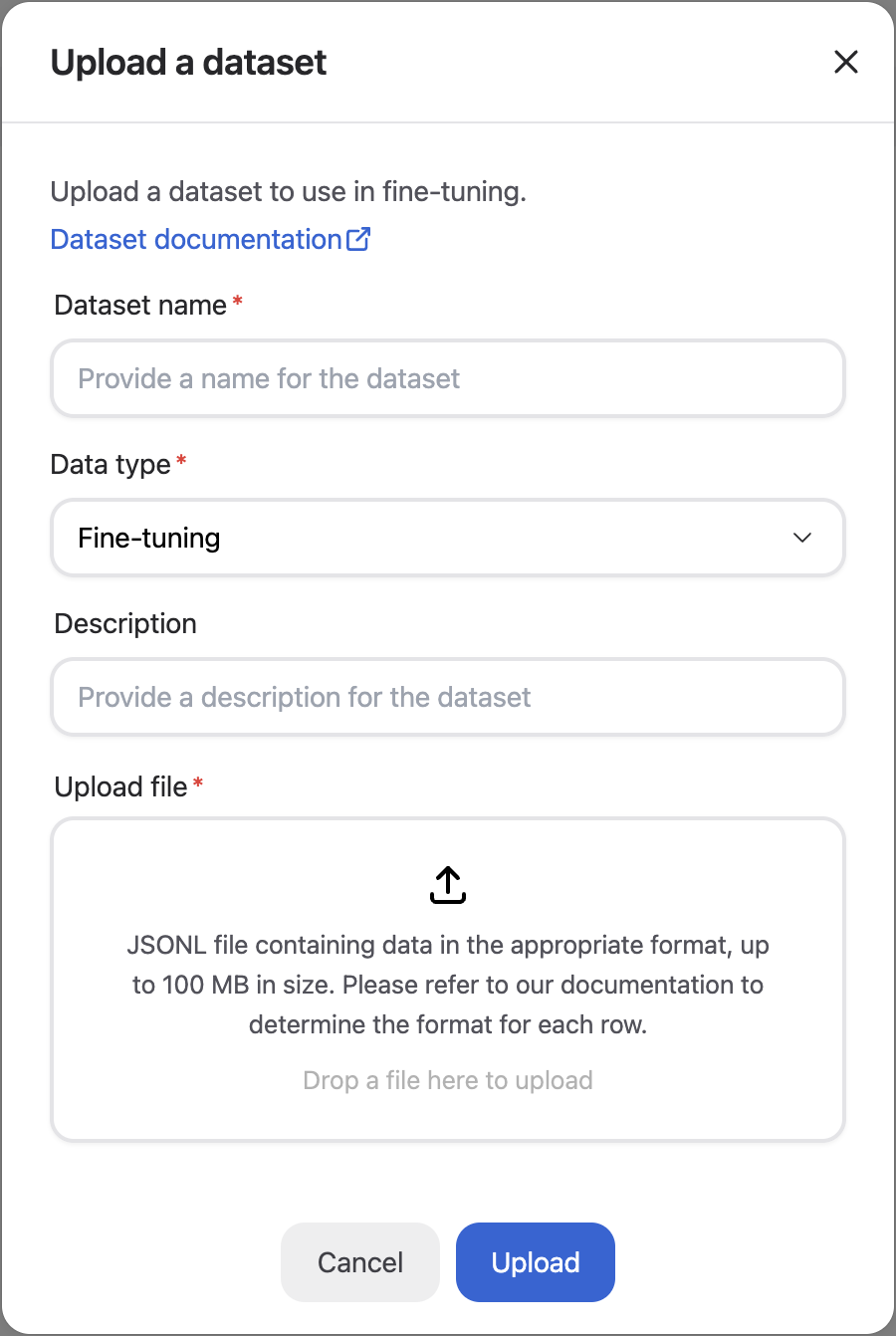
Once you have procured training data for your model, navigate to the “Datasets” page of the AMD AI Workbench to upload the dataset. We currently support uploading datasets in a JSONL format, where each row represents a separate chat conversation. The format of each row should correspond to what is defined in the specification for each datapoint.
Click the “Upload” button and drop your JSONL file in, providing a name and description.
Base models for fine-tuning#
We continuously work to certify base models for fine-tuning. It is recommended that you first identify a base model appropriate for your use case and use that for fine-tuning. If you are missing a specific base model, reach out to our customer success team so they can either provision access or fast-track certification.
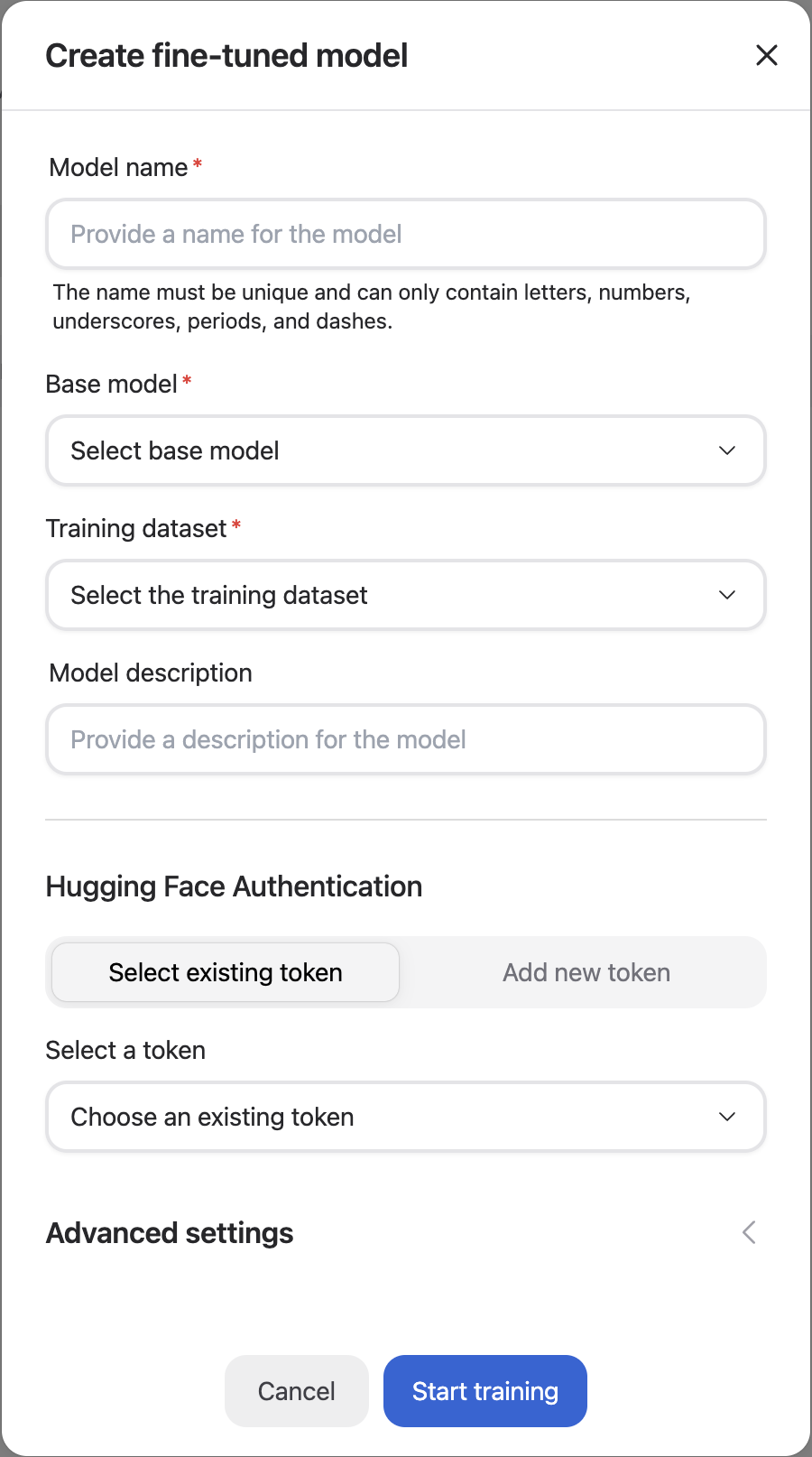
You can browse the list of accessible base models by navigating to the Models page, going to the Custom models tab, and clicking the “Fine-tune Model” button to see available base models in the “Select base model” dropdown.
Creating a fine-tuned model#
Navigate to the Models page and go to the Custom models tab. Select the Fine-tune Model button to open the Create fine-tuned model wizard, which guides you through five steps:
Model — Select the base model. If the model requires access credentials, provide a Hugging Face token at this step.
Training — Choose a fine-tuning type and select up to 10 datasets. To produce a model, choose Full or Merged. To produce a reusable adapter instead, choose LoRA — see LoRA adapters.
Target — Provide a name and an optional description for the fine-tuned model.
Hyperparameters — Optional. Leave Customize hyperparameters off to use certified defaults, or turn it on to adjust batch size, number of epochs, and learning rate multiplier.
Check — Review the configuration and select Start training.
Note
Hugging Face Token Required: You must provide a Hugging Face token for fine-tuning operations. You can either create a new token or select an existing one from your project secrets. The token will be stored as a Kubernetes secret and appear in the Secrets tab. For more information about managing secrets, see the Secrets documentation.
Once the fine-tuning process has been successfully triggered, your model appears as a row in the Custom Models tab with its current status (Pending → Running → Complete or Failed). The fine-tuning run may take several hours to complete, so we recommend visiting the AMD AI Workbench occasionally while the run is in progress. If the run fails mid-way, please reach out to our customer success team, and we will help triage your issue.
Deploying a fine-tuned model#
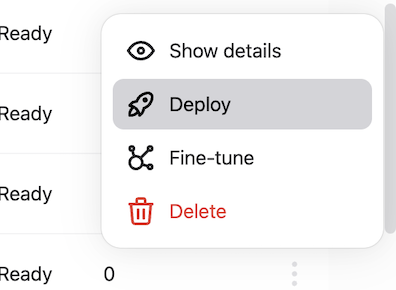
Once your model has been successfully trained, the model status will reflect as “Ready”. This means that the weights have been successfully computed for your model and it can be used for inferencing.
Click the “Deploy” button corresponding to the model you would like to deploy to make it available for inferencing. Please note that a model, once deployed, can take up to 5 minutes before it can serve requests.
Once deployed, you can navigate to the Chat page to converse with the model.
Undeploying a fine-tuned model#
Once you have deployed a version of a fine-tuned model, you might want to “Undeploy” it if it has been superseded by another model. You can do this by navigating to the Deployed models tab, identifying the model in the list, and clicking the “Undeploy” button.
This will make the model no longer accessible for inferencing.