Workspaces#
Workspaces provide different kinds of interactive environments optimized for AMD compute. For example, JupyterLab and Visual Studio Code workspaces allow users to leverage the power of the cluster with zero configuration on the client computer.
Deploy a workspace#
You can deploy a workspace by clicking “View and deploy”, which opens the workload deployment view.
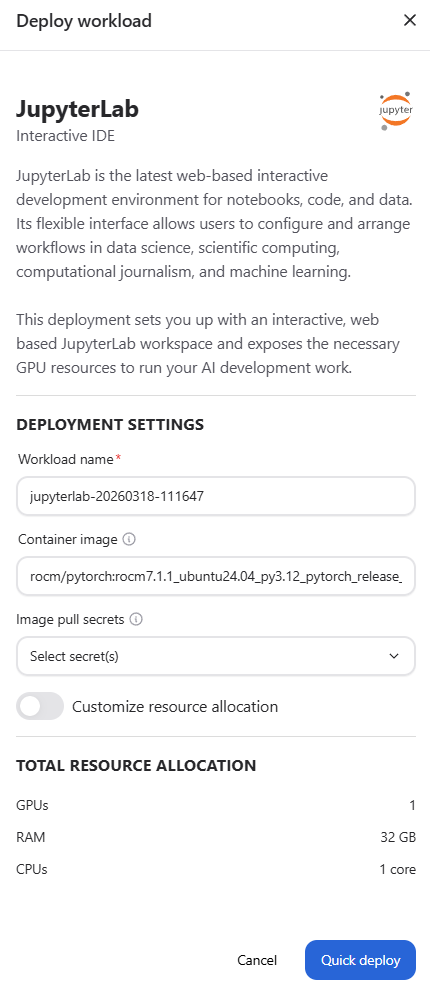
From the deployment view, you can change the workspace name if you wish. The default resource allocation should be sufficient for most workspaces, but it is possible to customize these settings if needed.
Once the values have been set, press “Quick deploy” to deploy the workspace. It may take a while for the workspace to start, but once it has started, the deployment overlay will show a “Launch” button, which can be used to access the workspace. The workspace can also be accessed later from the Dashboard page.
Workspace Scoping#
All workspaces within a project are visible and accessible to every project member. This enables collaboration by allowing team members to share tools, notebooks, and environments within the same project.
The scope of a workspace determines its creation limits, not its visibility:
Project-Scoped Workspaces#
MLflow is project-scoped:
One per project: Only one MLflow workspace can exist per project at any time, including failed or unknown instances
Shared access: All project members can access the same MLflow instance
Creation limits: A failed or unknown MLflow workspace must be deleted before a new one can be created
User-Scoped Workspaces#
JupyterLab, Visual Studio Code, and ComfyUI are user-scoped:
One per user per type: Each user can have one JupyterLab, one VS Code, and one ComfyUI workspace per project. Failed or unknown instances must be deleted before creating a new one
Visible to all: All project members can see and access any workspace in the project, regardless of who created it