Connect a cluster in the UI#
This article explains how to use the Connect a new cluster dialog in the AMD Resource Manager user interface. Only administrators can start this flow; other roles see a read-only Clusters view.
Note
Complete the on-cluster installs in Connecting a cluster to AMD Resource Manager before you expect the cluster to show as connected. The first step of the dialog links to that onboarding documentation so you can run the Resource Manager cluster agent and related work on Kubernetes first.
To add a new cluster:
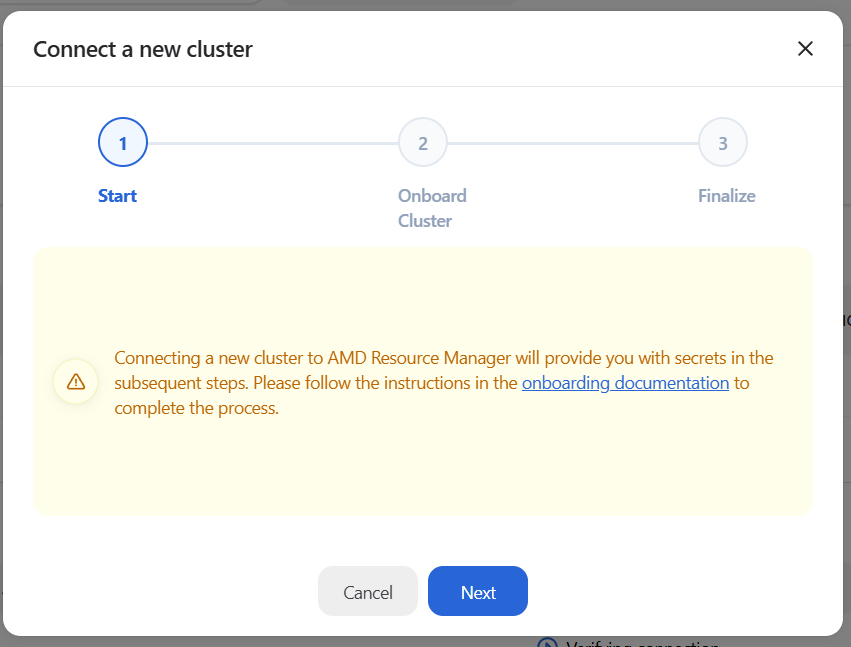
Open the Clusters page and select Connect a cluster.
Start — Read the message, open the onboarding documentation link if you need the install steps, then choose Next. Resource Manager registers a new connection request; the next screen shows the credentials the agent will use to reach RabbitMQ.
Onboard cluster — The dialog shows
cluster-idandcluster-secret. Copy them into a Kubernetes Secret as in Connecting a cluster to AMD Resource Manager (for example the same keys asusernameandpasswordon thekubectl create secretcommand in that guide). The UI warns that this pair is only shown once for security. When you are ready, check I have copied the keys to use with the onboarding documentation and select Next.Finalize — The dialog explains that, after a successful on-cluster install, the cluster will work toward a connection in the background. Select Done to close. Return to the Clusters list and allow some time: when the Resource Manager cluster agent is healthy, the row’s status can move to connected; there is no separate Verify connection action in the modal.
Delete a cluster#
Select the cluster you want to delete.
Click “Delete” in the right menu of the selected cluster.