Monitoring Workloads and Resource Utilization#
For workload, resource utilization, quota, and related terms, see Glossary: Projects and tutorials.
Note
This tutorial is part of a series. For the best experience, complete Projects and quotas first.
The AMD Resource Manager allows you to monitor all workloads and resources running within your projects. This includes workloads that you may be managing using a variety of tools such as kubectl, Flyte, Kubeflow, and others. To ensure you receive the full benefits of the AMD Resource Manager, including quota enforcement, access control, and monitoring, workloads are tracked and monitored regardless of how they are submitted to the cluster. This means that workloads submitted via tools such as kubectl must adhere to the quotas defined for your project, and you can consistently track and monitor GPU usage and runtime for these workloads. This tracking and enforcement also apply to Custom Resources that may be created by other operators running within the cluster. To demonstrate this functionality, we will deploy a workload to a project via kubectl.
Prerequisites for monitoring workloads and resource utilization#
Project membership: Membership in an AMD Resource Manager project. We will use the
demo-projectcreated in the Projects and quotas tutorial.Tools: Ensure
kubectland kubelogin are installed on your local machine.
Deployment and monitoring#
The deployment process can be seen below:
Navigate to the project’s Details page by selecting your project,
demo-project, from the Projects page. From this page, you will be able to monitor your soon-to-be-deployed workload (see Figure 1).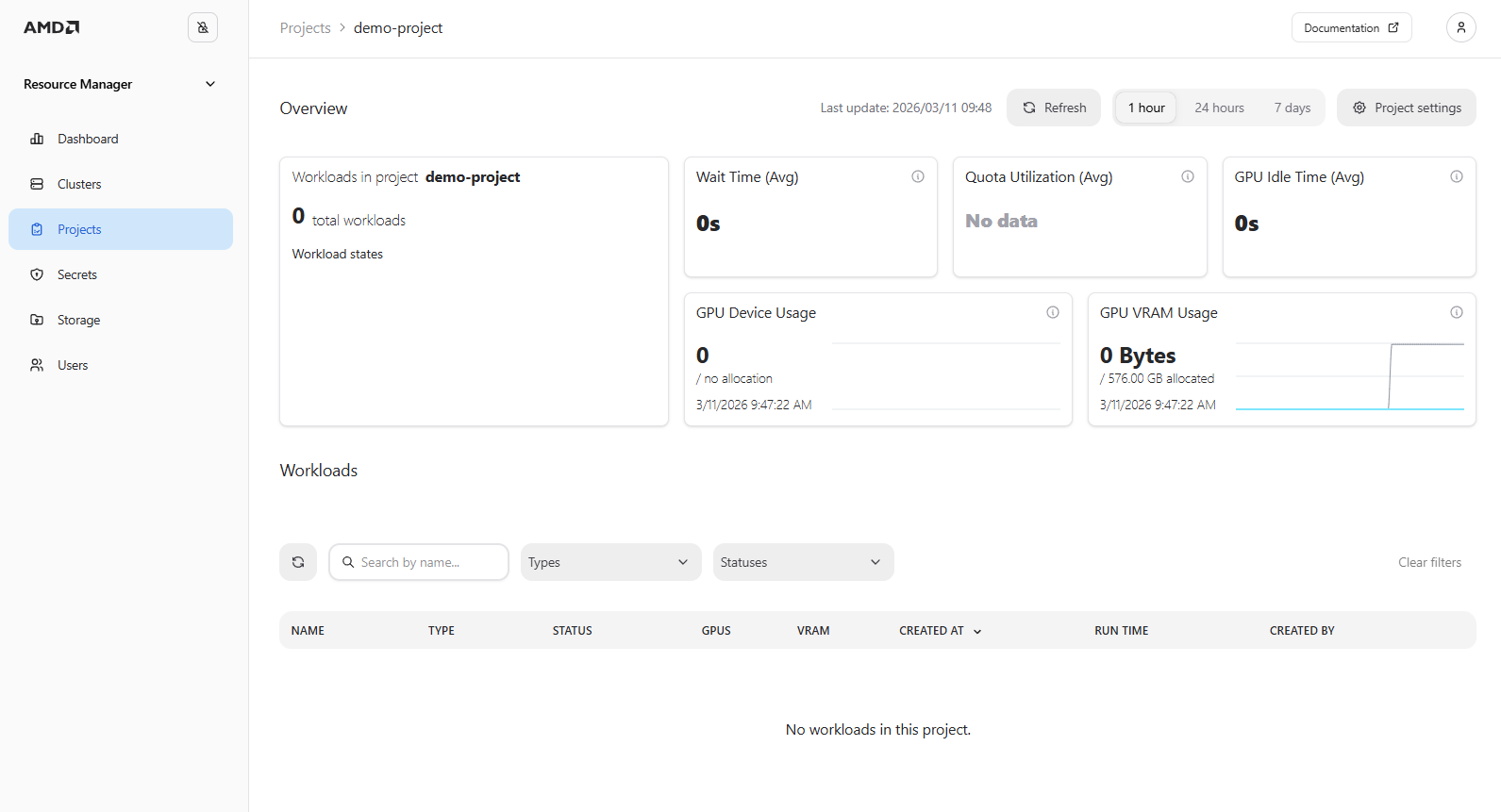
Figure 1: The “Project Details” page with no active workloads.
Use the provided Kubernetes manifest below and save it as a file named
sample_aims.yaml. While this example uses an AMD Inference Microservice (AIM), you may adjust the manifest or replace it with a different workload of your choice. Please note that this manifest will deploy ameta-llama-llama-3-1-8b-instructmodel.apiVersion: aim.silogen.ai/v1alpha1 kind: AIMService metadata: name: sample-aim spec: cacheModel: true model: ref: amdenterpriseai-aim-meta-llama-llama-3-1-8b-instru-0.8.4-590b84 replicas: 1 runtimeConfigName: amd-aim-cluster-runtime-config
Note
AIMs provide standardized, portable inference microservices for serving AI models on AMD Instinct™ GPUs. They are distributed as Docker images, leverage the ROCm™ software stack, and run natively on AMD Instinct™ GPUs, ensuring predictable performance and portability across AMD hardware platforms. Read more in the AIMs Overview.
Submit the workload via
kubectlto the namespace matching the name of the project, using the command below:kubectl apply -f sample_aims.yaml -n demo-project
Return to the project details view; the submitted AIM should now be displayed on the dashboard (see Figure 2).
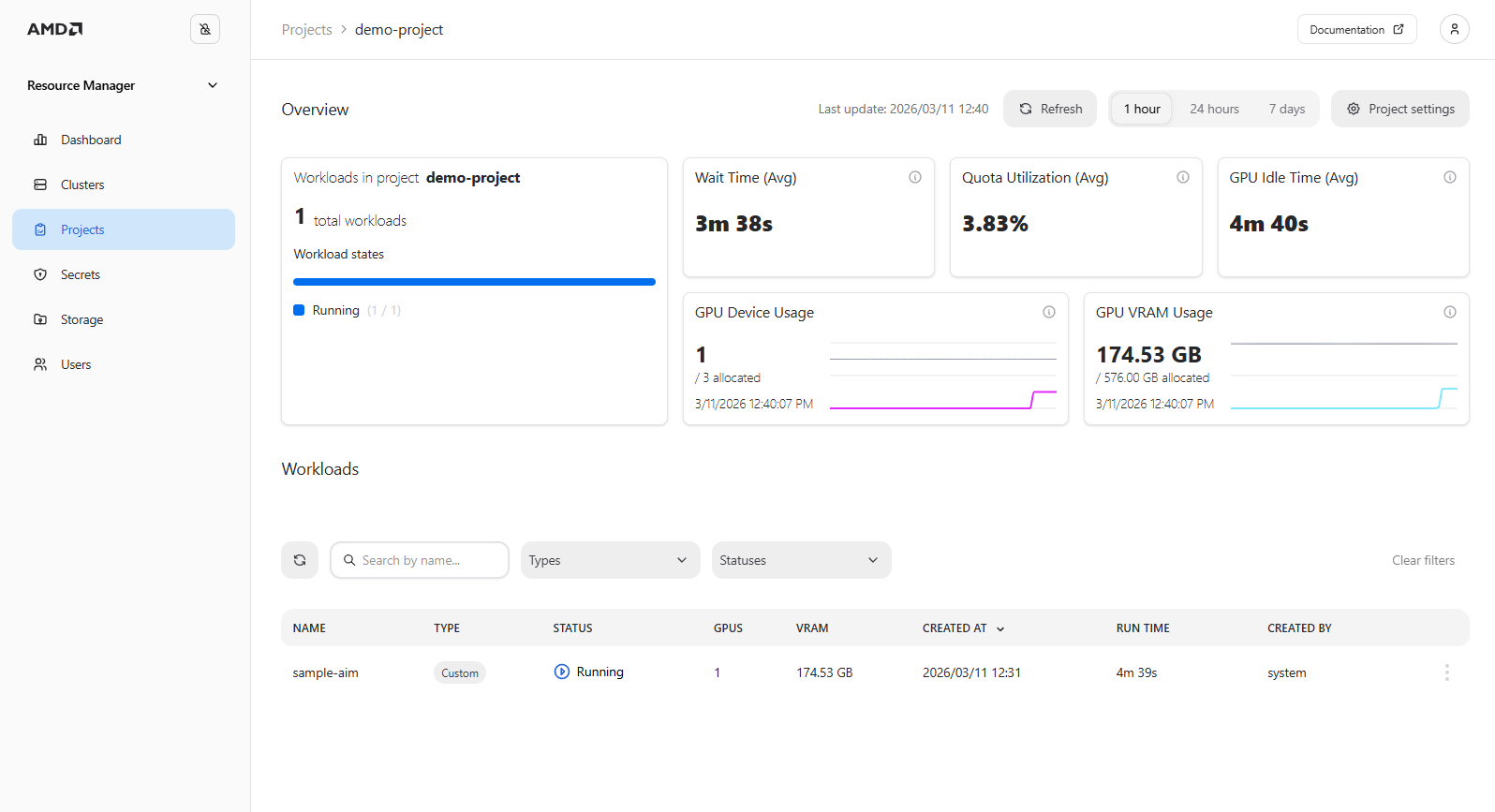
Figure 2: The “Project Details” page with the automatically tracked workload.
In addition, by navigating to the Dashboard page you can view high-level quota and utilization information for your projects across all clusters, along with live widgets displaying GPU utilization information (see Figure 3).
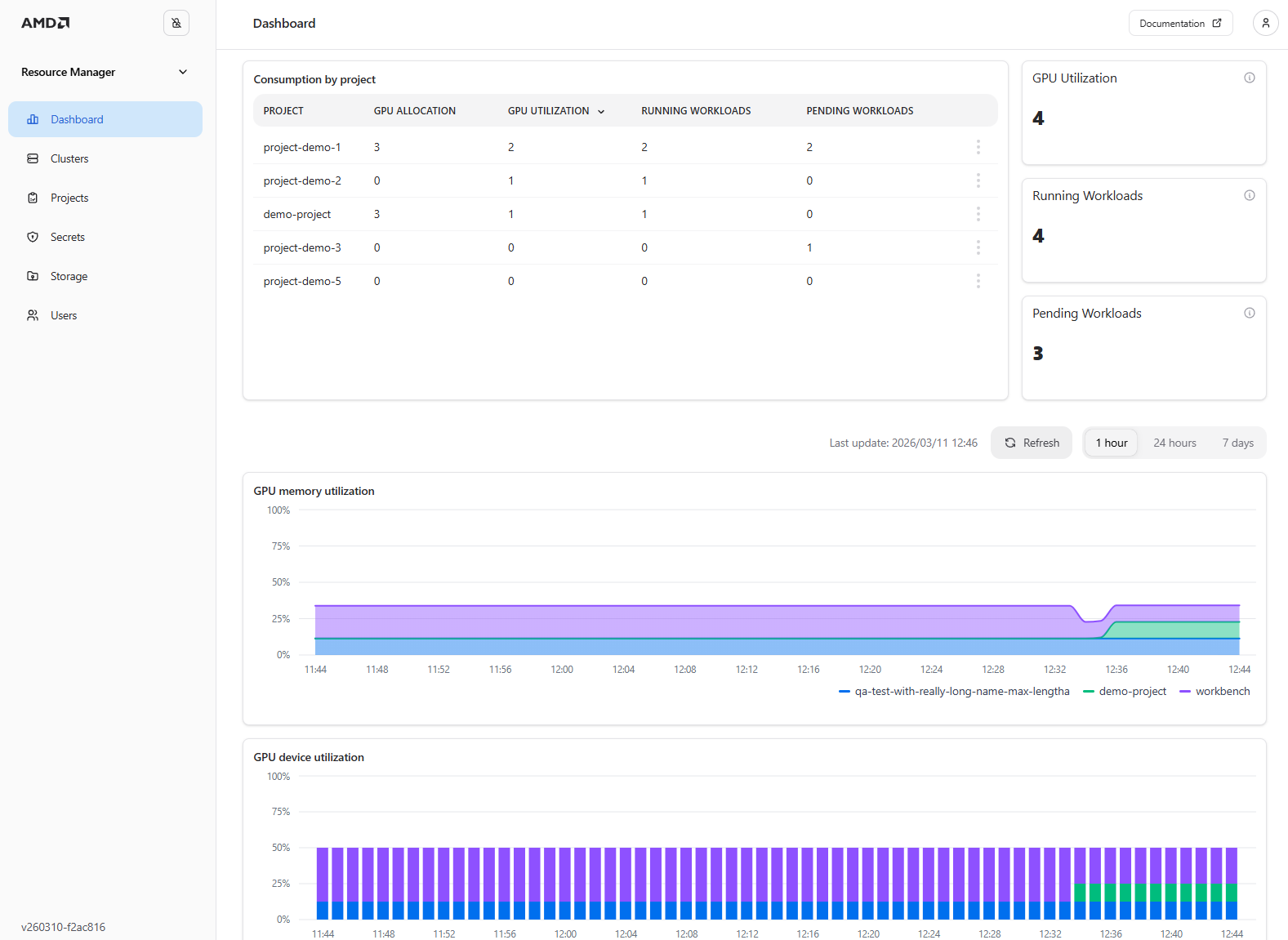
Figure 3: The “Dashboard” page showing quota and utilization information.
To view the resource allocation across the entire cluster rather than just a single project, you can monitor workload utilization for all clusters on the Clusters page (Figure 4). As you can see, in our case there are now 6 running workloads in total. Please note that this depends on the actual resource usage, and you may see a different number of running workloads.
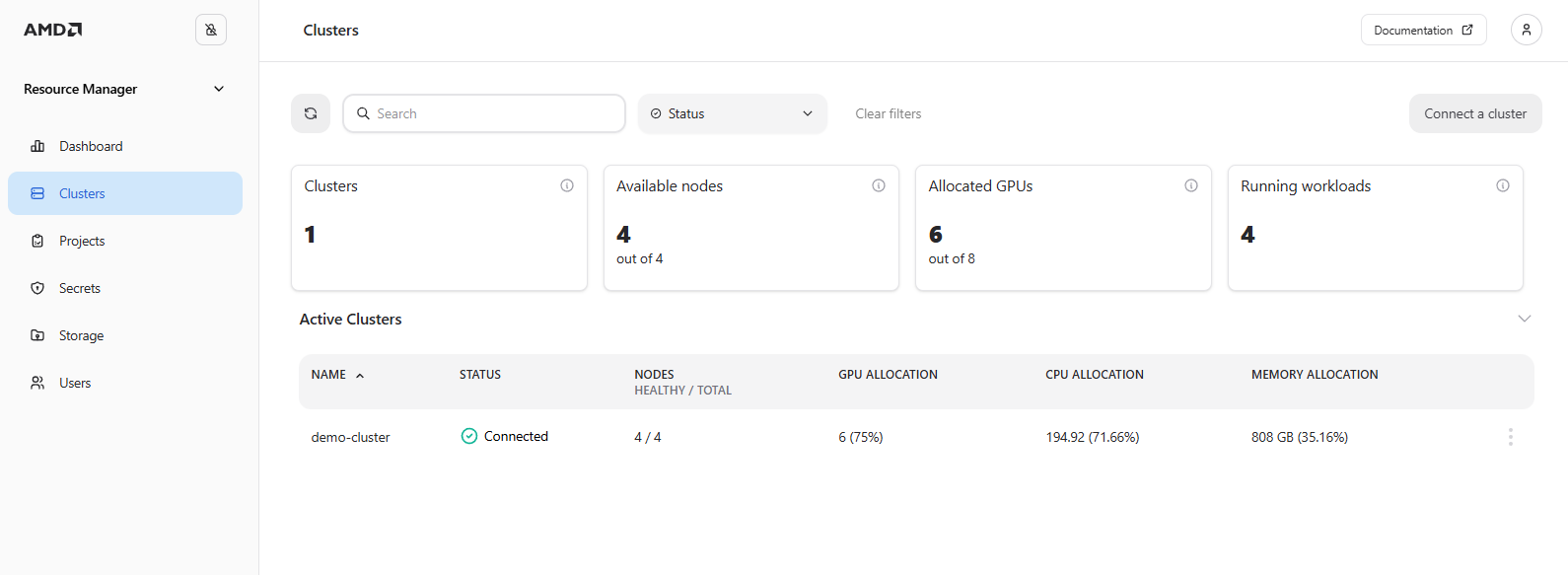
Figure 4: The “Clusters” page showing 6 workloads running in the cluster.
Clicking a specific cluster, such as the
demo-cluster, displays the Cluster Details page. This page provides quota and utilization information for the entire cluster and all associated projects (see Figure 5).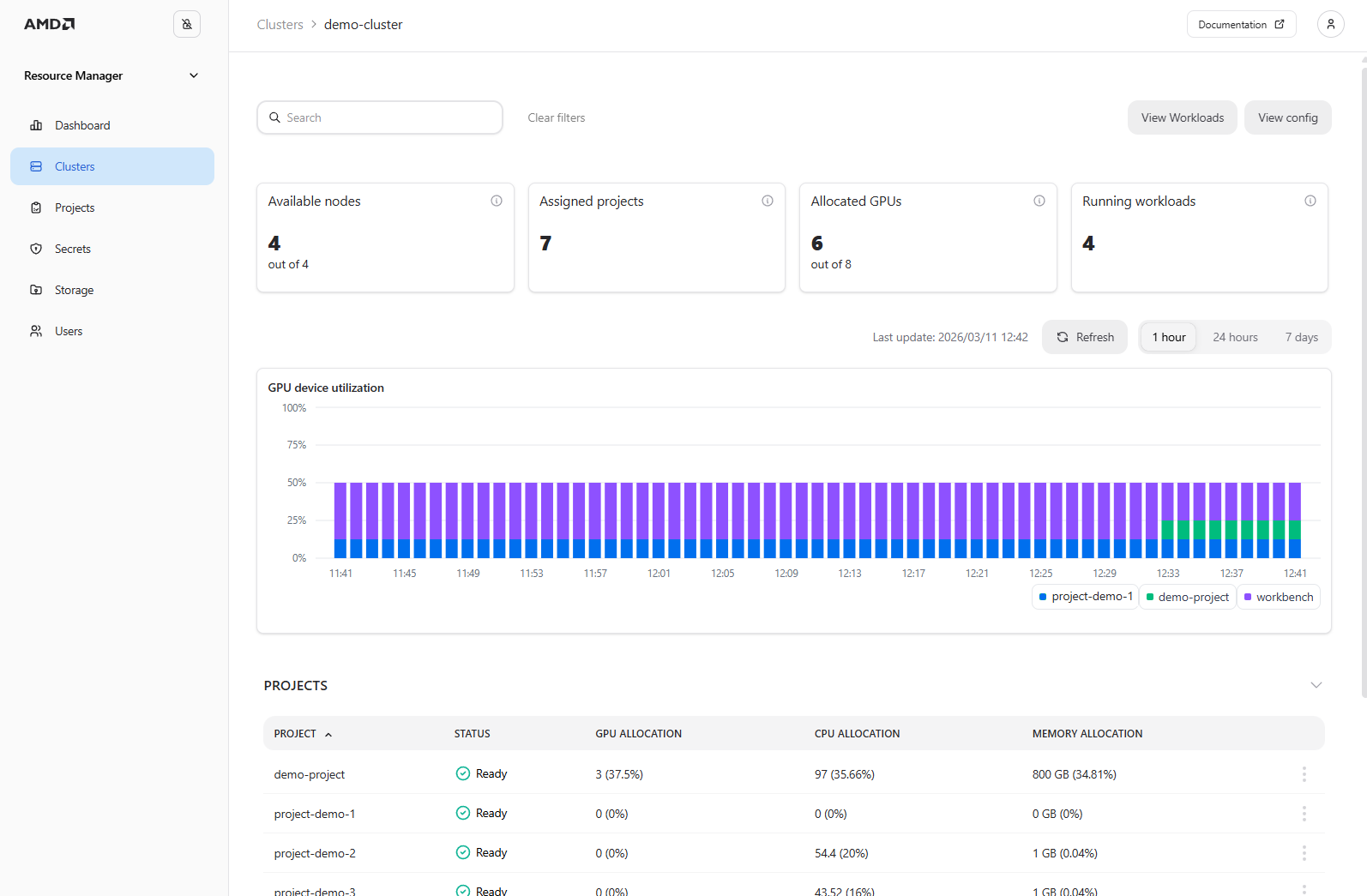
Figure 5: The “Cluster Details” page for the “demo-cluster”.
Lastly, delete the submitted workload using either
kubectlor the AMD Resource Manager UI to clean up the project. To delete the workload viakubectl, use the following command:kubectl delete -f sample_aims.yaml -n demo-project
Your submitted workload should be deleted. Feel free to go to the Project Details page in the UI to confirm.
Summary#
In this tutorial you deployed a workload to your project via kubectl, observed it on the Project Details page, and viewed resource allocation at the cluster and dashboard level. You also saw how AMD Resource Manager tracks workloads regardless of how they are submitted. Next, you can explore how resource sharing and pre-emption work when multiple projects compete for resources.
Previous: Projects and quotas · Next: Resource sharing and pre-emption