Chat#
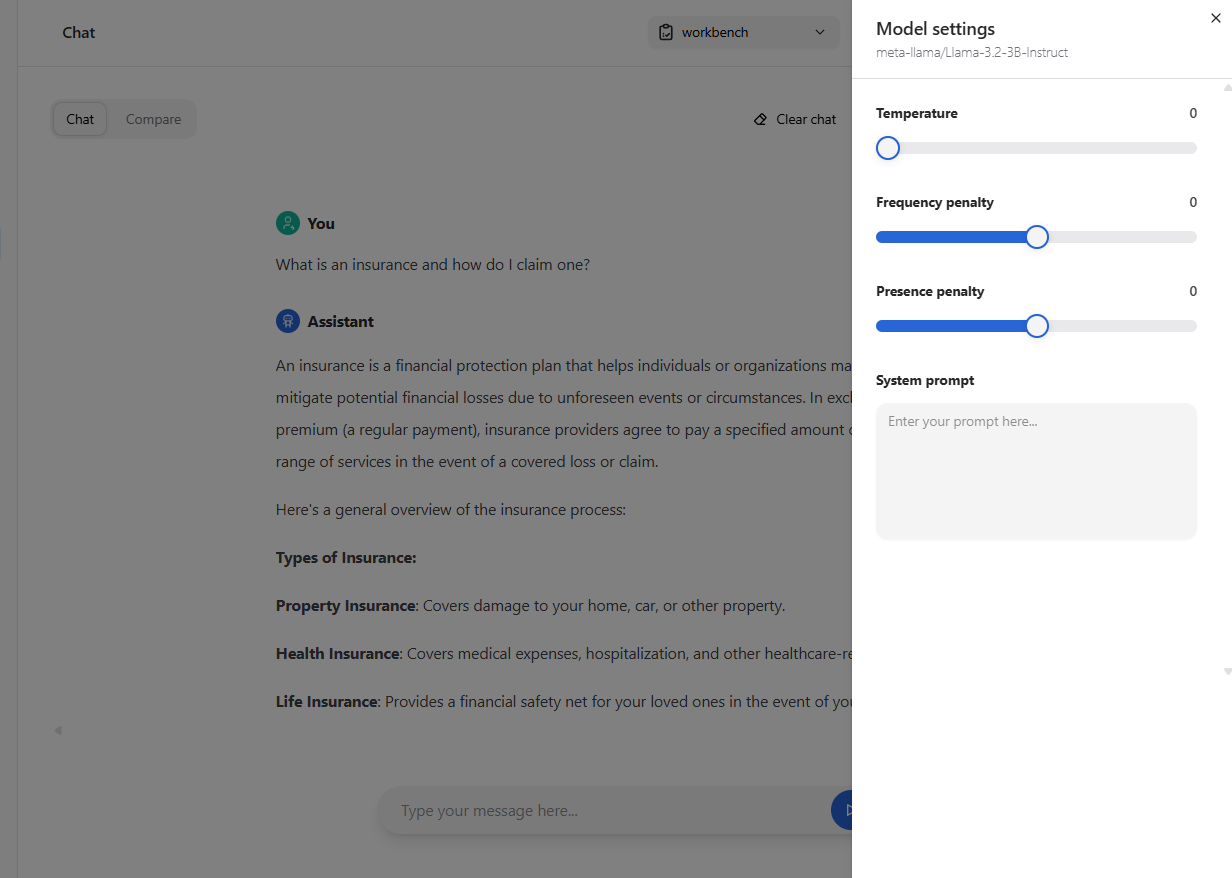
The chat page allows you to experiment with models you have access to. You can modify several parameters to see how they affect the model’s response.
Accessing the chat#
Navigate to Chat page to access the chat.
You will be able to choose from the list of models you have access to. The list contains deployed AIMs and fine-tuned models that have chat capability.
Expand the settings toggle to view and modify the generation parameters.
Working with Multimodal Models#
Some deployed models support multimodal inputs, including images and text. This allows you to ask questions about or analyze images using vision-enabled models.
Image Input Availability#
The image attachment feature is automatically available when you select a model that supports vision inputs. Models that support image inputs are identified by their model tags, such as vision, vision-language, image-to-text, image-text-to-text, multimodal.
Attaching Images#
To include images in your chat:
Click the attachment icon (📎) next to the send button
Select one or more image files from your computer
The selected images will appear as thumbnails below the text input
Type your question or instruction about the image
Click Send to submit your message with the image(s)
You can attach multiple images in a single message. Each image will be processed along with your text input.
Image-Text Combinations#
Here are some example use cases:
Image analysis: Upload an image and ask the model to describe what it sees
Chart interpretation: Share a diagram and ask for insights
Document understanding: Upload a document image and ask questions about its content
Image comparison: Send multiple images to compare them
Image-only queries: Send one or more images with minimal text, and the model will provide analysis
Inspecting the debug output of the model#
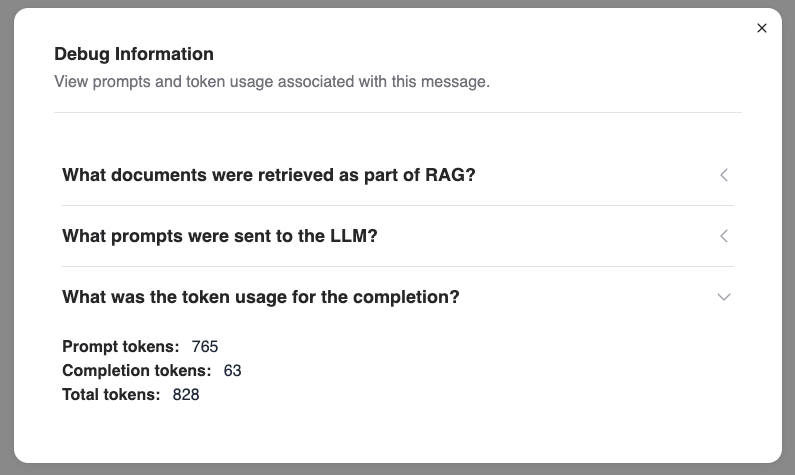
Once you have a response from the model, you can inspect the messages sent to the model, the context retrieved as part of generation, and the consumed tokens by clicking the “bug” icon next to the response.