GPU Resource Sharing and Pre-emption Functionality#
For resource sharing, pre-emption, borrowed resources, and related terms, see Glossary: Projects and tutorials.
Note
This tutorial is part of a series. For the best experience, complete Projects and quotas and Monitoring workloads and resource utilization first.
Now that you have set up your project and deployed your first workload, we will demonstrate how the pre-emption or quota functionality works in AMD Resource Manager.
As noted previously, you can allocate a quota for a project by editing the quota in the project settings. Defining the quota ensures a fixed amount of compute resources for the assigned project. You can specify GPU, CPU, system memory, and ephemeral disk allocations for each of your projects.
Resource sharing is handled automatically when a workload is submitted. Consequently, if project A has an ensured quota, those resources can be borrowed by another project, project B, if the ensured quota is not fully utilized by project A.
However, if project A then submits workloads that require the full quota, then project B’s workloads that are borrowing from project A get suspended, or pre-empted, and project A’s workloads can be deployed.
If resources subsequently become available on the cluster for project B, then the pre-empted workloads are automatically resumed. For long-running jobs, it is therefore important to have a checkpointing mechanism to avoid losing progress when running on shared resources.
This resource borrowing and pre-emption can be useful in day-to-day work when several teams and types of workloads try to maximize the benefits of limited resources, especially GPUs. For example, by not assigning a quota to CI jobs, users can submit these jobs at any time, but the jobs will wait in a queue and only run when higher-priority projects are not actively using their allocated resource quota (e.g., during off-peak hours). This approach ensures that computing resources are efficiently utilized while maintaining priority access for high-priority projects.
Note
For a workload to pre-empt another workload from a different project, all the resources of the new workload must fit within the quota of the project — this includes GPU, CPU, memory, and ephemeral disk (if applicable). If the workload needs to borrow one or more of the resources from other projects to facilitate pre-emption, it will not be scheduled.
For more on the concepts behind quotas and pre-emption, see Project Quotas in Project settings.
Prerequisites for GPU resource sharing and pre-emption functionality#
New project: Create a new project named
low-prio. Do not assign any quotas to this project.Quota settings: Ensure the
demo-projecthas the following quota settings:GPUs: 2
CPU Cores: 97
System Memory: 800 GB
Ephemeral Disk: 150 GB
Practical illustration of resource sharing and pre-emption#
To demonstrate pre-emption and sharing, we will use a sample workload that requests one GPU per replica. First, deploy one replica to low-prio:
apiVersion: apps/v1
kind: Deployment
metadata:
  name: sample-deploy
spec:
  replicas: 1
  selector:
    matchLabels:
      app: sample-deploy
  template:
    metadata:
      labels:
        app: sample-deploy
    spec:
      containers:
      - env:
        - name: AIM_CACHE_PATH
          value: /workspace/model-cache
        image: amdenterpriseai/aim-meta-llama-llama-3-1-8b-instruct:0.10
        imagePullPolicy: IfNotPresent
        name: inference-container
        ports:
        - containerPort: 8000
          name: http
          protocol: TCP
        readinessProbe:
          failureThreshold: 3
          periodSeconds: 10
          successThreshold: 1
          tcpSocket:
            port: 8000
          timeoutSeconds: 1
        resources:
          limits:
            amd.com/gpu: "1"
            memory: 48Gi
          requests:
            amd.com/gpu: "1"
            cpu: "4"
            memory: 32Gi
Save the manifest above as sample_deploy.yaml. Submit it to the newly created low-prio project:
kubectl apply -f sample_deploy.yaml -n low-prio
To verify the deployment, open k9s and navigate to the pods view for the low-prio namespace (see Figure 1). The deployment is also visible in the AMD Resource Manager where, as shown in Figure 2, one GPU is currently in use.

Figure 1: k9s — Sample workload running in the low-prio project.
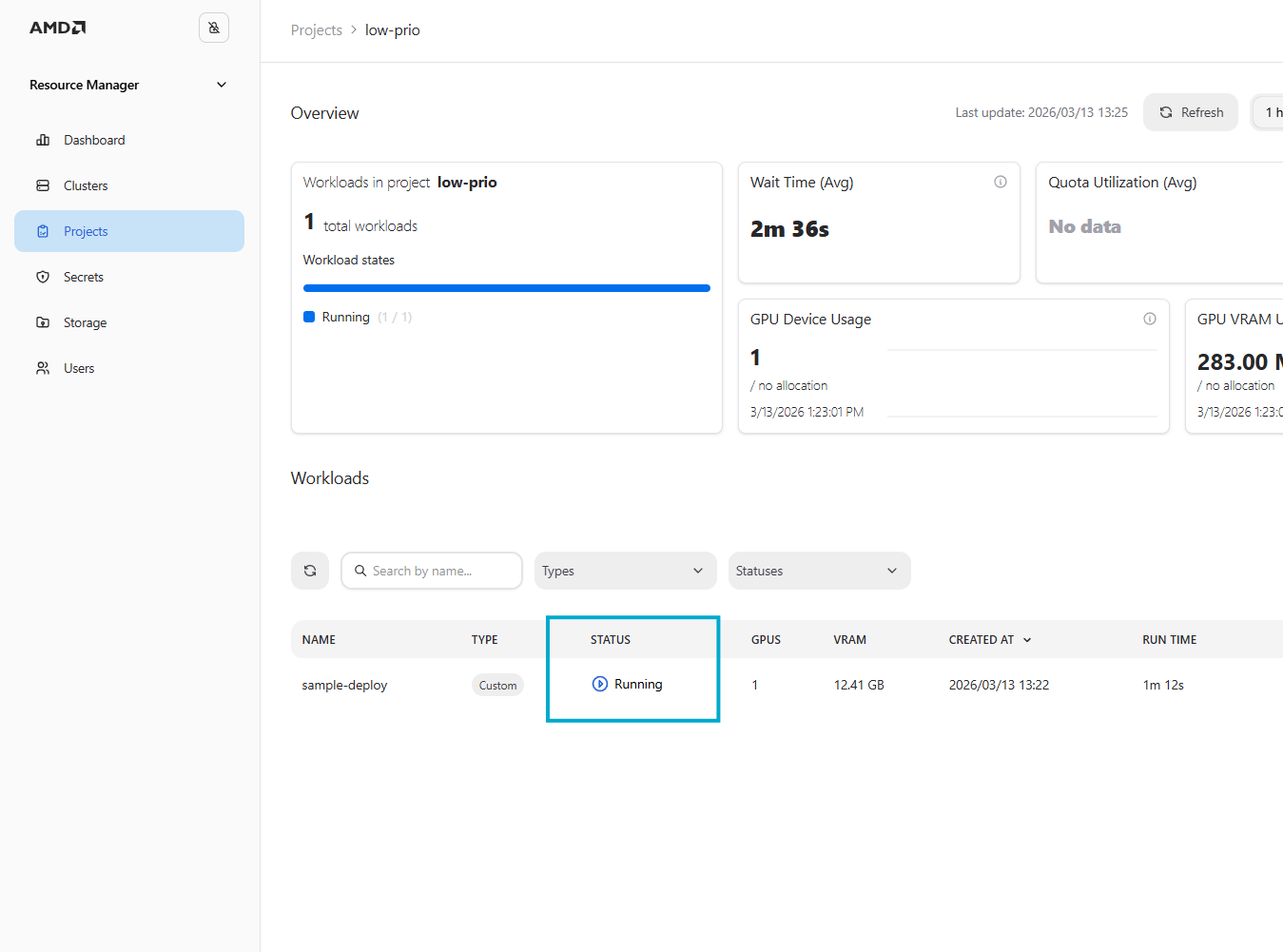
Figure 2: Workload status as reported in the AMD Resource Manager.
Now, submit a workload with two replicas to the original demo-project, which has an ensured quota of two GPUs. Save the following manifest as sample-aim.yaml (same as above but with replicas: 2):
apiVersion: apps/v1
kind: Deployment
metadata:
  name: sample-aim
spec:
  replicas: 2
  selector:
    matchLabels:
      app: sample-aim
  template:
    metadata:
      labels:
        app: sample-aim
    spec:
      containers:
      - env:
        - name: AIM_CACHE_PATH
          value: /workspace/model-cache
        image: amdenterpriseai/aim-meta-llama-llama-3-1-8b-instruct:0.10
        imagePullPolicy: IfNotPresent
        name: inference-container
        ports:
        - containerPort: 8000
          name: http
          protocol: TCP
        readinessProbe:
          failureThreshold: 3
          periodSeconds: 10
          successThreshold: 1
          tcpSocket:
            port: 8000
          timeoutSeconds: 1
        resources:
          limits:
            amd.com/gpu: "1"
            memory: 48Gi
          requests:
            amd.com/gpu: "1"
            cpu: "4"
            memory: 32Gi
kubectl apply -f sample-aim.yaml -n demo-project
By monitoring the cluster via k9s, we can observe that the workload in the low-prio project enters a Pending state (Figure 3). We can also observe the same in the AMD Resource Manager (Figure 4).

Figure 3: k9s — Low-priority workload gets pre-empted.
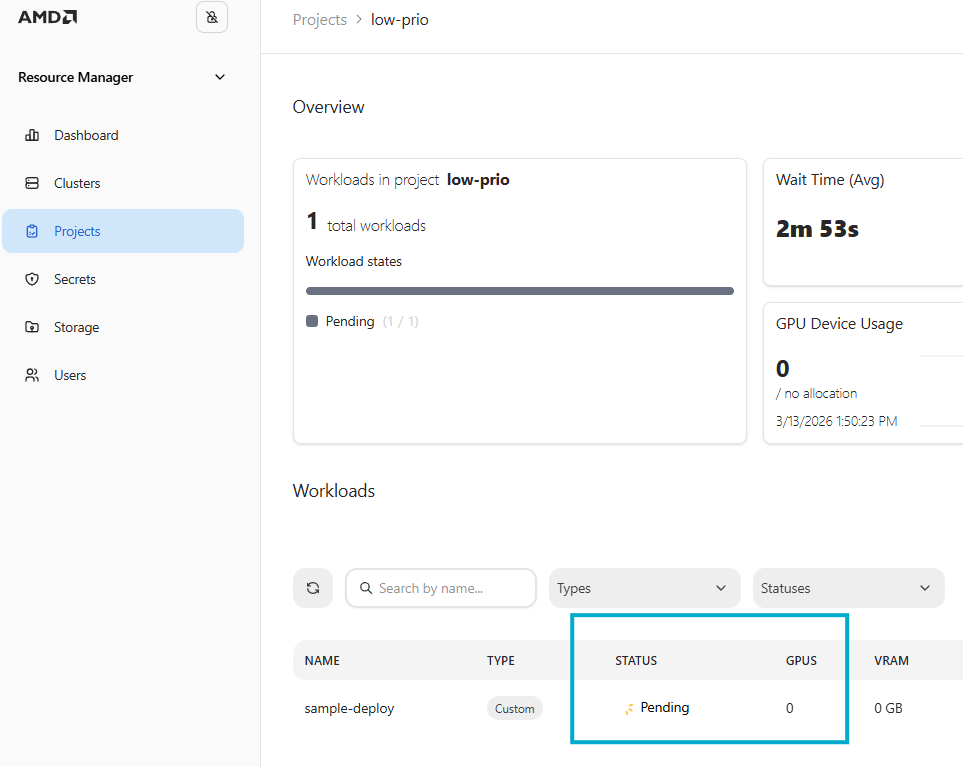
Figure 4: The previously running workload is now pending.
Monitoring the newly deployed workload in demo-project confirms that the workload is now running (see Figure 5 for k9s and Figure 6 for AMD Resource Manager). Hence demo-project is now using its ensured quota.

Figure 5: k9s — Sample workload submitted to a high-priority project.
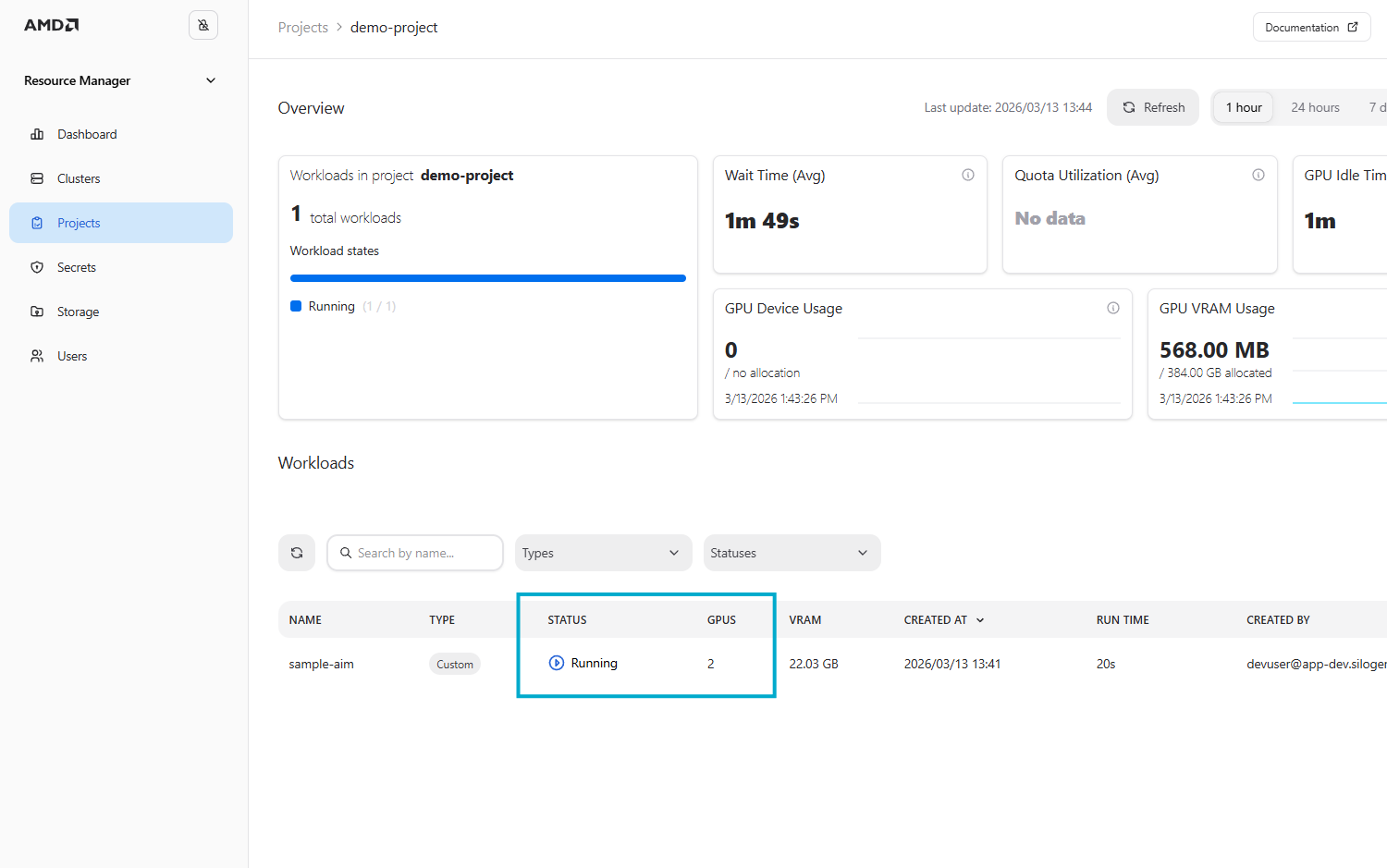
Figure 6: High-priority workload is running.
You can now clean your environment by either deleting the workload from the AMD Resource Manager or by running the commands below:
kubectl delete -f sample_deploy.yaml -n low-prio
kubectl delete -f sample-aim.yaml -n demo-project
Summary#
In this tutorial you saw how a project with no quota (low-prio) can run workloads by borrowing idle resources, and how submitting a workload in a project with an ensured quota (demo-project) pre-empts the borrowing workload. You observed the low-priority workload move to Pending and the high-priority workload take the GPUs, illustrating quota-based pre-emption in practice.