GPU Preemption#
GPU preemption allows the platform to reclaim GPU resources from idle workloads in a project when those resources are needed elsewhere. By configuring preemption at the project level, platform administrators can define when and how the scheduler is allowed to interrupt running workloads to free up GPU capacity for higher-priority demand.
Note
GPU preemption tracks AMD GPU resources only. Workloads using other GPU types are not affected by this feature.
Note
GPU preemption is distinct from quota-based preemption, where workloads from projects that have exceeded their quota may be interrupted to restore resources to projects within their quota. For more information on quota-based preemption, see Project Settings.
Permissions#
Role |
Can configure |
Can view |
|---|---|---|
Platform administrator |
Yes — during project creation and in project settings |
Yes |
Team member |
No |
Yes — read-only view in project settings |
How it works#
When GPU preemption is enabled for a project, the platform applies scheduling configuration to the project’s Kubernetes namespace. The scheduler monitors GPU utilization continuously. A workload is considered idle when its GPU activity drops below the configured threshold and stays there for the full idle timer duration. Once a workload is idle, whether it is preempted depends on the configured policy.
Configuration options#
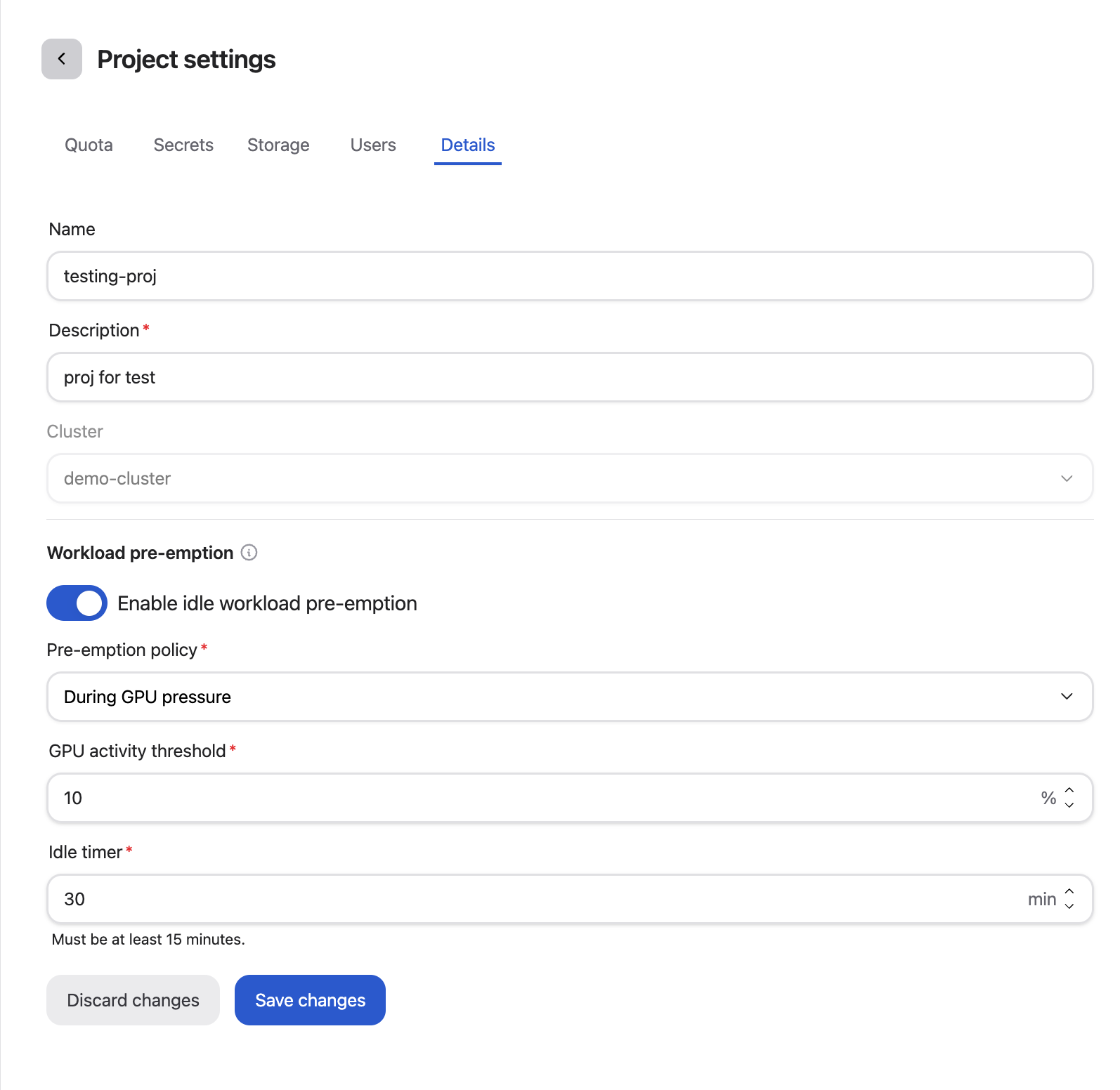
Enable idle workload preemption: Turns GPU preemption on or off for the project. When disabled, none of the other settings have any effect.
Preemption policy: Controls when preemption is allowed to occur:
During GPU pressure — Preemption is only triggered when another workload in the cluster is waiting specifically because there are not enough GPU resources available. Workloads pending for other reasons (such as image pulls or storage provisioning) do not trigger preemption.
Always — A workload is preempted as soon as it has been idle for the full idle timer duration, regardless of whether any other workload is waiting for GPU resources.
GPU activity threshold: The GPU utilization percentage below which a workload is considered idle and may be preempted. For example, a threshold of 10% means the scheduler considers a workload idle when its GPU usage falls below 10%.
Idle timer: The number of minutes a workload must remain below the GPU activity threshold before it is preempted. This gives running jobs time to save state or finish a checkpoint before being stopped.
Note
GPU activity threshold and idle timer are required when preemption is enabled.
Enabling GPU preemption during project creation#
Platform administrators can configure preemption when creating a new project.
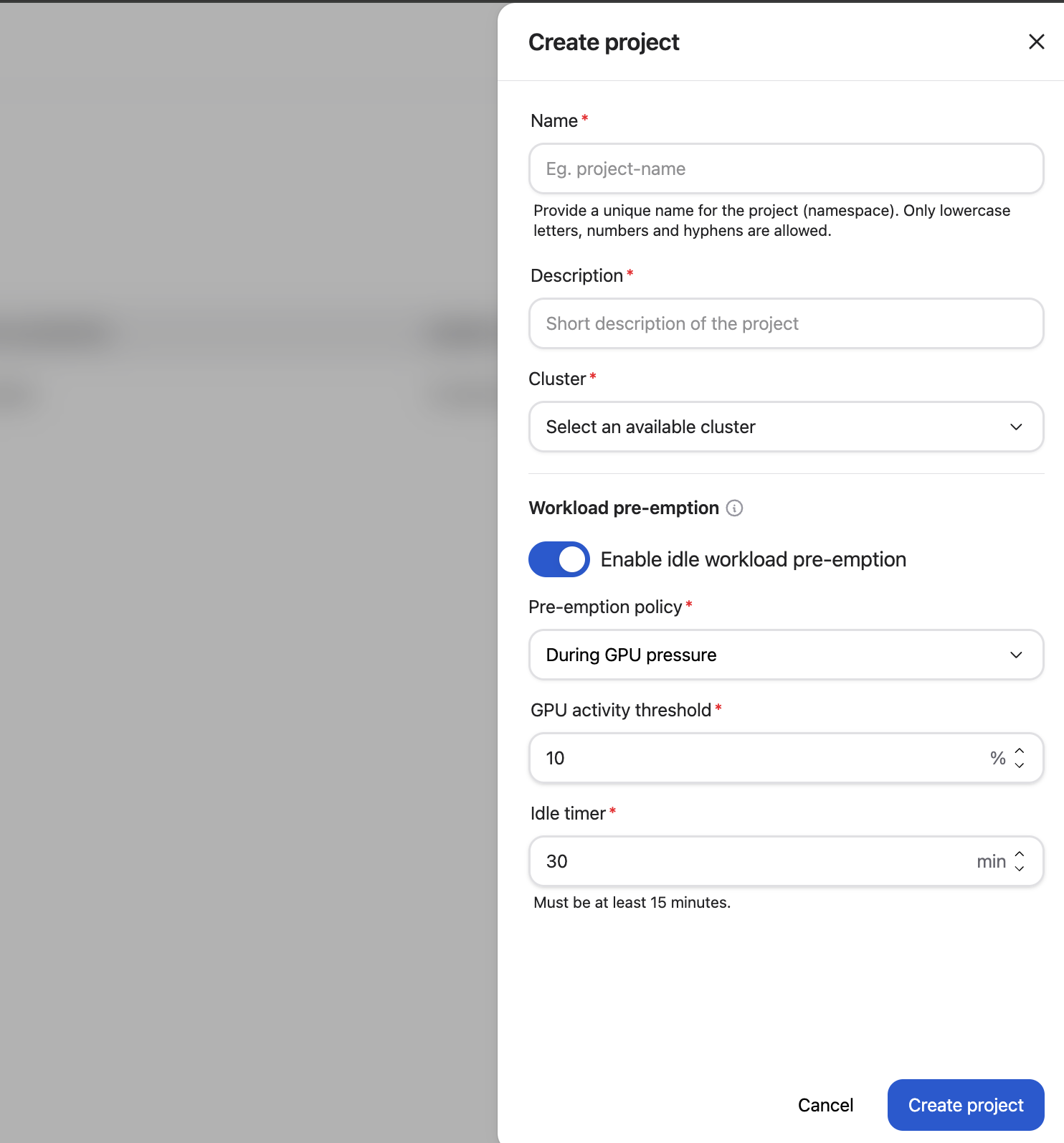
Navigate to the Projects page and click Create project.
Fill in the project name, description, and cluster.
In the Workload preemption section, toggle Enable idle workload preemption on.
Select a Preemption policy.
Set the GPU activity threshold and Idle timer.
Click Create and configure quota.
Editing GPU preemption for an existing project#
Platform administrators can update the preemption configuration at any time from the project settings.
Navigate to the Projects page.
Select the project you want to configure by clicking it. The Actions button appears once a project is selected.
Open Actions (⋯) and choose Edit settings.
Select the Details tab.
In the Workload preemption section, adjust the settings as needed.
Click Save changes.
Viewing the preemption policy as a team member#
Team members can see the preemption policy configured for their project, but cannot modify it.
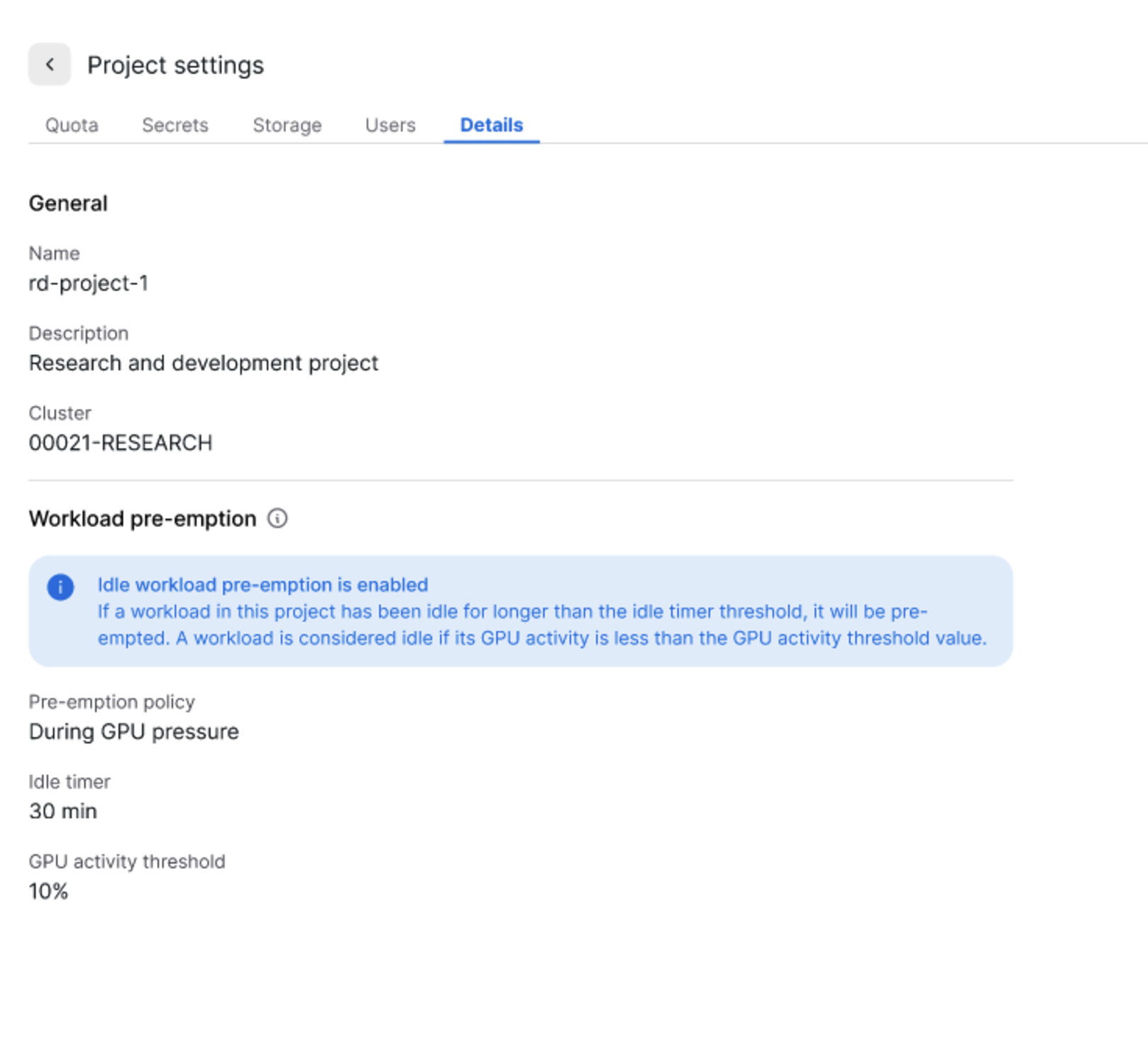
On the Projects page, select your project by clicking it, then open Actions (⋯) and choose Edit settings. Open the Details tab. The Workload preemption section displays the current policy, idle timer, and GPU activity threshold.