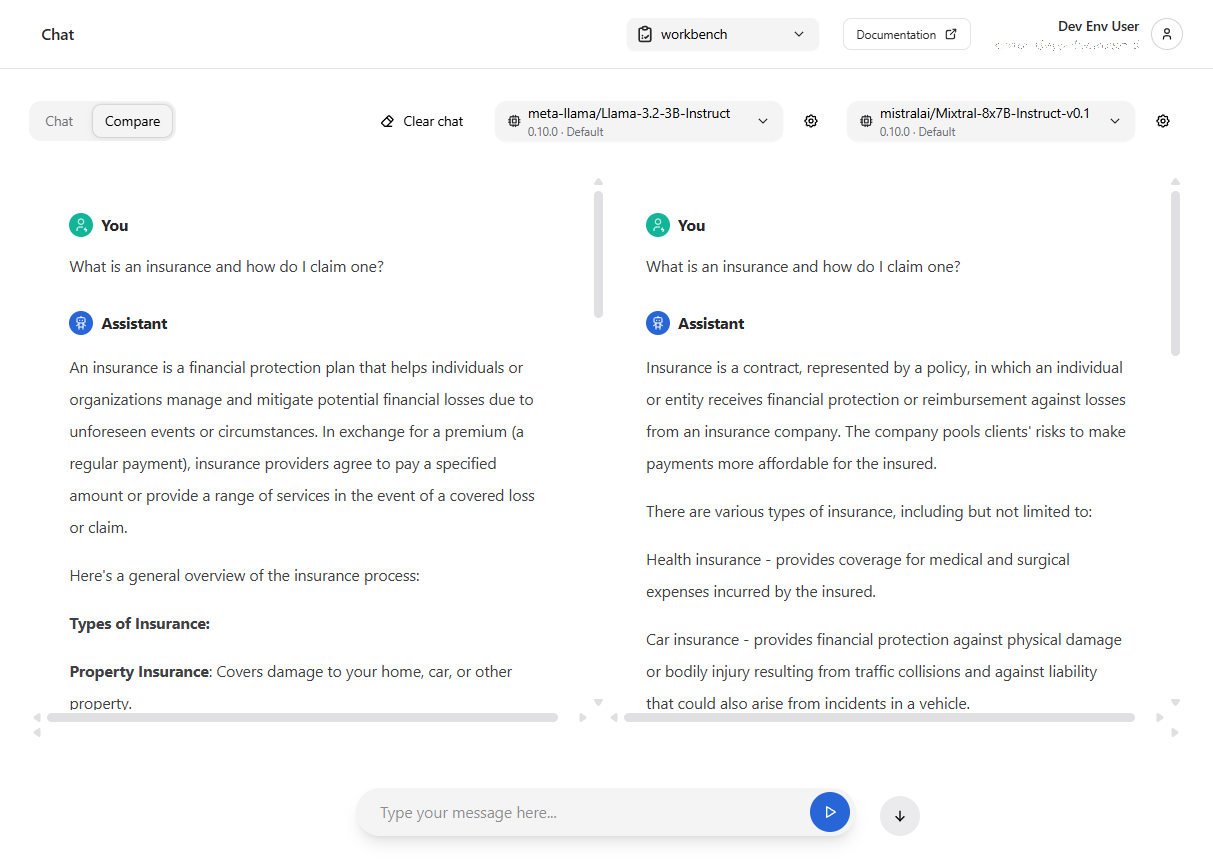
Comparison#
The model comparison view allows you to compare the output of different models using the same set of settings. You can also compare the output of the same model with different deployment options.
A common use case is to compare the response of your model before and after fine-tuning, or to test how different settings affect the model’s output.
Accessing the model comparison#
Navigate to the Chat and choose the Compare tab to access the model comparison.
You will be able to choose from the list of models you have access to.
Similar to the chat, you can expand the settings toggle to view and modify the generation parameters.
Comparing Multimodal Models#
Some deployed models support multimodal inputs, including images and text. When comparing models, you can use images with vision-enabled models to see how different models interpret the same images.
Image Support in Comparison#
When using the Compare view:
Select two models that both support image inputs
Both models must support images for the image attachment feature to be available
You can then send images to see how each model interprets them side-by-side
Models that support image inputs are identified by their model tags, such as vision, vision-language, image-to-text, image-text-to-text, multimodal.
Attaching Images in Compare Mode#
To include images in your comparison:
Click the attachment icon (📎) next to the send button
Select one or more image files from your computer
The selected images will appear as thumbnails below the text input
Type your question or instruction about the image
Click Send to submit your message with the image(s) to both models
You can attach multiple images in a single message. Images will be processed by each model according to its capabilities.
Use Cases for Image Comparison#
When comparing models with image inputs:
Vision capability testing: Compare how different models interpret images
Model iteration: Compare output quality before and after model fine-tuning using the same images
Model selection: Test multiple models on the same images to determine which is best for your use case
Deployment comparison: Compare the same model deployed with different configurations using images
Inspecting the debug output of the model#
Also similar to the chat, you can click the “bug” icon to inspect the messages sent to the model,the context retrieved as part of generation, and the consumed tokens.