Deploy AMD Solution Blueprints#
Learning outcomes:
How to deploy a Solution Blueprint
How to reuse one AIM across multiple Solution Blueprints to conserve GPU resources
While this tutorial deploys the Solution Blueprints below, the same approach applies to other blueprints in the catalog.
Overview#
We start by deploying the AutoGen Studio Solution Blueprint. Each Solution Blueprint ships with a default AIM LLM. Rather than deploying a separate model for each Solution Blueprint, we then deploy the Agentic Translation Solution Blueprint and connect it to the same AIM, sharing a single LLM across both Solution Blueprints. The resulting architecture is shown in the figure below:
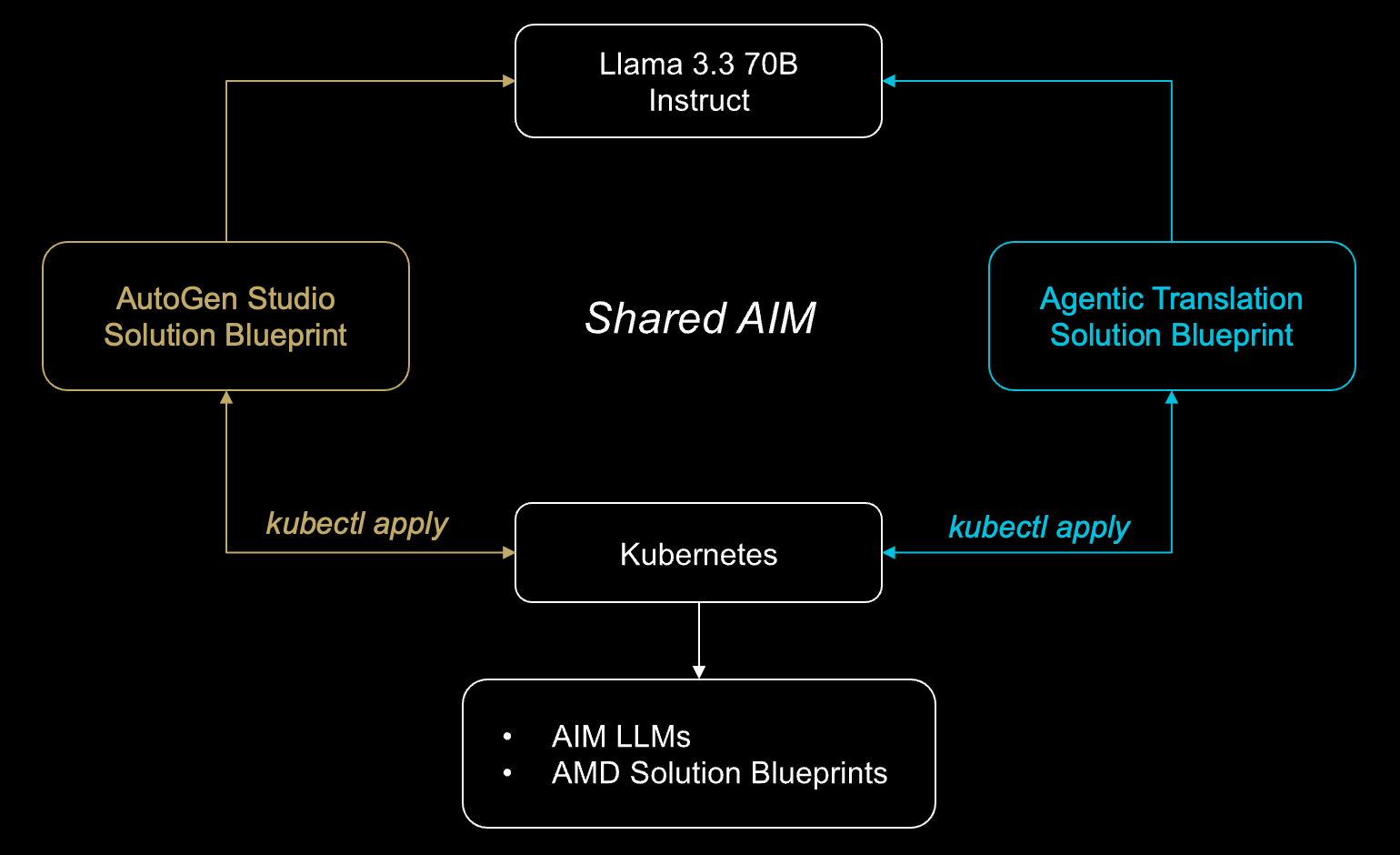
Two Solution Blueprints sharing a single AIM deployment
Prerequisites#
Kubernetes access with permission to create resources in a namespace
The Kubernetes namespace in this tutorial is called
demo
kubectland Helm installed and configured for your clusterOptional:
k9sor similar for inspecting workloadsHardware: This guide was validated with two AMD Instinct GPUs
Hugging Face Token#
AIM images are hosted publicly on Docker Hub and do not require authentication to pull. However, certain models are gated on Hugging Face and require an access token to download. Store your token as a Kubernetes secret so it can be referenced securely by the deployment.
Create a secret for the demo namespace:
kubectl create secret generic hf-token \
    --from-literal="hf-token=YOUR_HUGGINGFACE_TOKEN" \
    -n demo
secret/hf-token created
Deploying the AutoGen Studio Solution Blueprint#
Begin by deploying the AutoGen Studio Solution Blueprint, which demonstrates how to deploy the AutoGen Studio Framework. The blueprint provides a web-based interface for creating, configuring, and managing multi-agent AI conversations. This allows users to create sophisticated multi-agent systems where different AI agents can collaborate, debate, and work together to solve complex problems, each with specialized roles and capabilities.
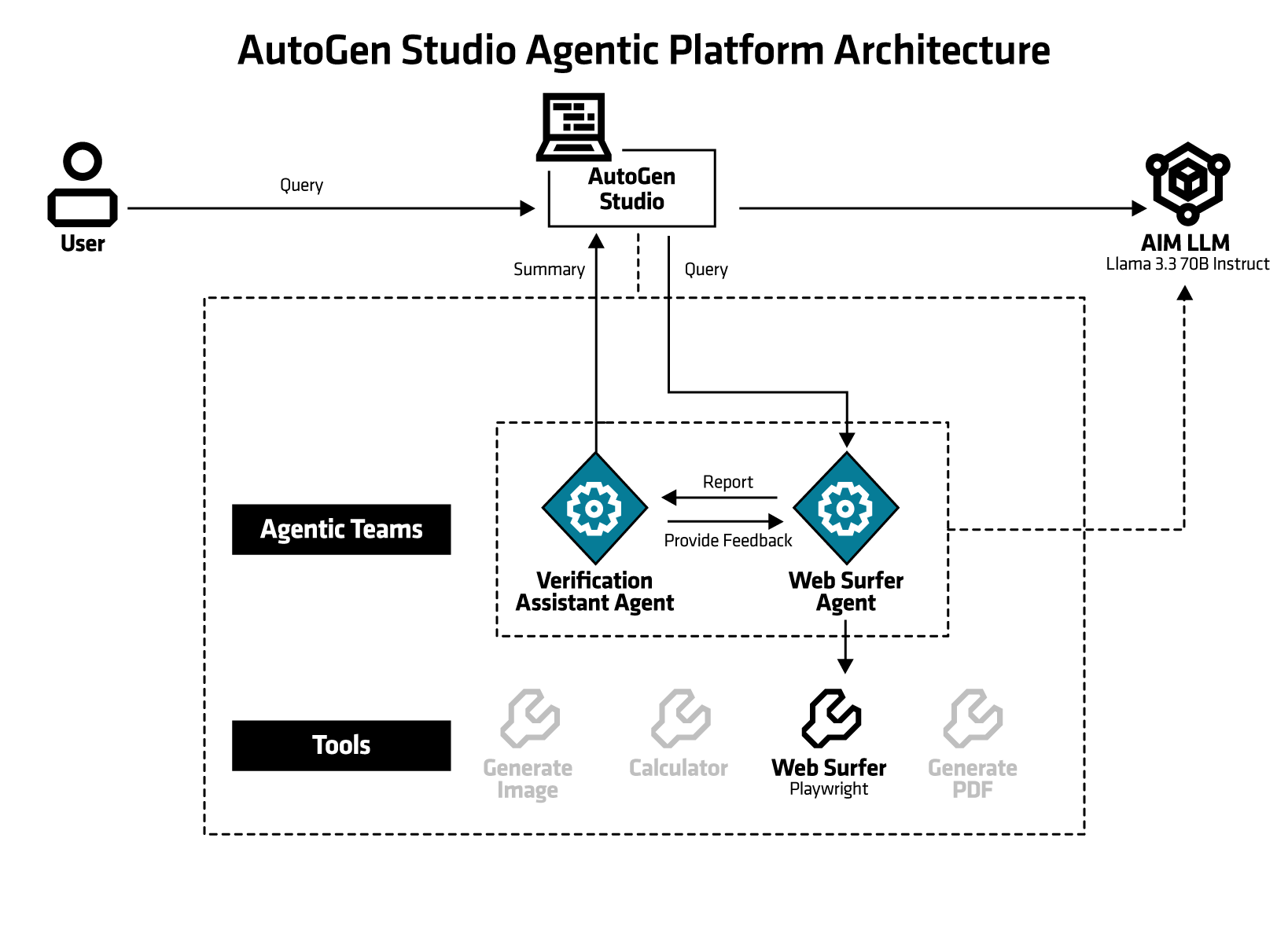
When you deploy a Solution Blueprint, the template automatically deploys one or more AIMs based on the blueprint’s requirements. As shown in the figure below, the AutoGen Studio Solution Blueprint is backed by a single AIM, Llama 3.3 70B Instruct, which powers the agent conversations.
Deployment#
Solution Blueprints are packaged as OCI-compliant Helm charts in the Docker Hub registry. The recommended deployment approach is to pipe the output of helm template to kubectl apply -f -. Define the deployment parameters:
Chart name: In this case,
aimsb-autogenstudio. Chart names are defined in each blueprint’sChart.yamlfile in the GitHub repository.Deployment name:
autostudioKubernetes namespace:
demo
Then, generate the deployment manifest and save it to a file called ags-default-deployment.yaml for easier debugging:
name="autostudio"
namespace="demo"
chart="aimsb-autogenstudio"
helm template $name oci://registry-1.docker.io/amdenterpriseai/$chart \
  --set llm.env_vars.HF_TOKEN.name=hf-token \
  --set llm.env_vars.HF_TOKEN.key=hf-token \
  > ags-default-deployment.yaml
Finally, apply the manifest to deploy the Solution Blueprint:
kubectl apply -f ags-default-deployment.yaml -n $namespace
This command creates two Deployments: one for the AIM LLM (Llama 3.3 70B Instruct) and one for the Solution Blueprint application.
kubectl get deployments -n $namespace
NAME
aimsb-autogen-studio-llm-autostudio
aimsb-autogenstudio-autostudio
Connecting to the UI#
To connect to the UI, you can either port-forward or use HTTP routing. For simplicity, this tutorial uses only port-forwarding.
kubectl port-forward services/aimsb-autogenstudio-$name 8082:8081 -n $namespace
The UI is then available at http://localhost:8082 in your browser. Feel free to explore the UI and the Solution Blueprint before moving to the next section. For example you could:
Navigate to the
Team BuilderpageClick on the
From Gallerytab and use theWeb Agent Teamas a templateGo to the Playground page, select
New Sessionand then select the Web Agent TeamEnter a query (first query may take longer to complete)
Reusing the AIM Service: Agentic Translation#
With Llama 3.3 70B Instruct already running, we will now deploy the Agentic Translation Solution Blueprint and connect it to the existing AIM rather than provisioning a second AIM.
Agentic Translation runs a translation app with a trilateral multi-agent system: an Action agent, Critique agent, and Judgment agent iteratively contribute to the translation task. The user submits source text and style notes in the UI, and the agents then translate, score, and refine in a loop until a judge agent accepts the result. Find more information about the blueprint here.
Deployment#
First, determine the deployment parameters. Continue to use the “demo” namespace, and the chart name can be found in the repository:
Deployment name:
translatorKubernetes namespace:
demoChart name:
aimsb-agentic-translation
To reuse an existing AIM deployment instead of deploying a new one, adjust the helm template command with the --set flag to configure the llm.existingService parameter. Setting llm.existingService to the Kubernetes service name of the running AIM tells the blueprint to use that endpoint.
To get the service name of the deployed AIM (Llama 3.3 70B Instruct), run the following command:
kubectl get services -n $namespace
As we’ve previously deployed Llama 3.3 70B Instruct, you should see output similar to:
NAME
aimsb-autogen-studio-llm-autostudio
aimsb-autogenstudio-autostudio
Copy the AIM Service name, in this case aimsb-autogen-studio-llm-autostudio and set the servicename variable in the script below to that value. Then generate the manifest:
name="translator"
namespace="demo"
servicename="aimsb-autogen-studio-llm-autostudio"
chart="aimsb-agentic-translation"
helm template $name oci://registry-1.docker.io/amdenterpriseai/$chart \
--set llm.existingService=$servicename > at-deployment.yaml
Finally, apply the manifest to deploy the Solution Blueprint:
kubectl apply -f at-deployment.yaml -n $namespace
To confirm that only one AIM is deployed, run the following command:
kubectl get deployments -n $namespace
You should still see only one AIM Deployment (Llama 3.3 70B Instruct), plus the new Agentic Translation application deployment:
NAME
aimsb-agentic-translation-translator
aimsb-autogen-studio-llm-autostudio
aimsb-autogenstudio-autostudio
Connecting to the UI#
kubectl port-forward services/aimsb-agentic-translation-$name 8501:8501 -n $namespace
The UI is then available at http://localhost:8501 in your browser. Feel free to explore the UI and test the translation capabilities with different inputs and instructions.
Cleaning Up#
When you are done, clean up your environment and delete the deployed resources by running:
kubectl delete -f ags-default-deployment.yaml -n $namespace
kubectl delete -f at-deployment.yaml -n $namespace