AIM Quick Start Guide: Discovery to First Deployment#
This guide walks you through AMD Inference Microservices (AIMs), from finding models in the AIM catalog to deploying and running your first inference request with Docker and Kubernetes.
What you will do:
Find available AIMs in the catalog
Choose a model that fits your hardware
Pull the container image
Deploy the model with Docker
Deploy the model on Kubernetes
Verify the inference server is working for each deployment
Expose Anthropic API and use with Claude Code
Prerequisites#
This guide covers both Docker and Kubernetes deployments. The prerequisites depend on whether you are using Docker or Kubernetes. AIMs are available for AMD Instinct™ GPUs, AMD Radeon™ Pro GPUs, and EPYC™ CPUs. This guide was validated on AMD MI300X Instinct™, the approach however will be similar for the other accelerators.
Requirement |
Docker |
Kubernetes |
|---|---|---|
AMD GPU with ROCm support (e.g., MI300X, MI325X, etc.) |
Required for deployment (not for EPYC) |
Required |
Docker installed with accelerator access |
Required |
— |
|
— |
Required |
|
— |
Optional |
Note: You do not need accelerator access to pull images or explore the AIM container images. On a machine without accelerator access, set AIM_ACCELERATOR_MODEL to override the detected accelerator model i.e. “simulate” your target hardware. See Explore profiles.
Find available AIMs and select a model#
All published AIM containers are listed in the AIM Catalog. This guide uses Mistral Small 3.2 24B Instruct 2506, a publicly available model. Follow these steps to find the container image and review the AIM’s technical specification:
Open the AIM Catalog.
Identify the accelerator (Instinct)
Browse models grouped by provider.
Each card shows the model name, a short description, a
docker pullcommand, and a link to the model’s technical specification.Identify the card for the specified model (see Figure below)
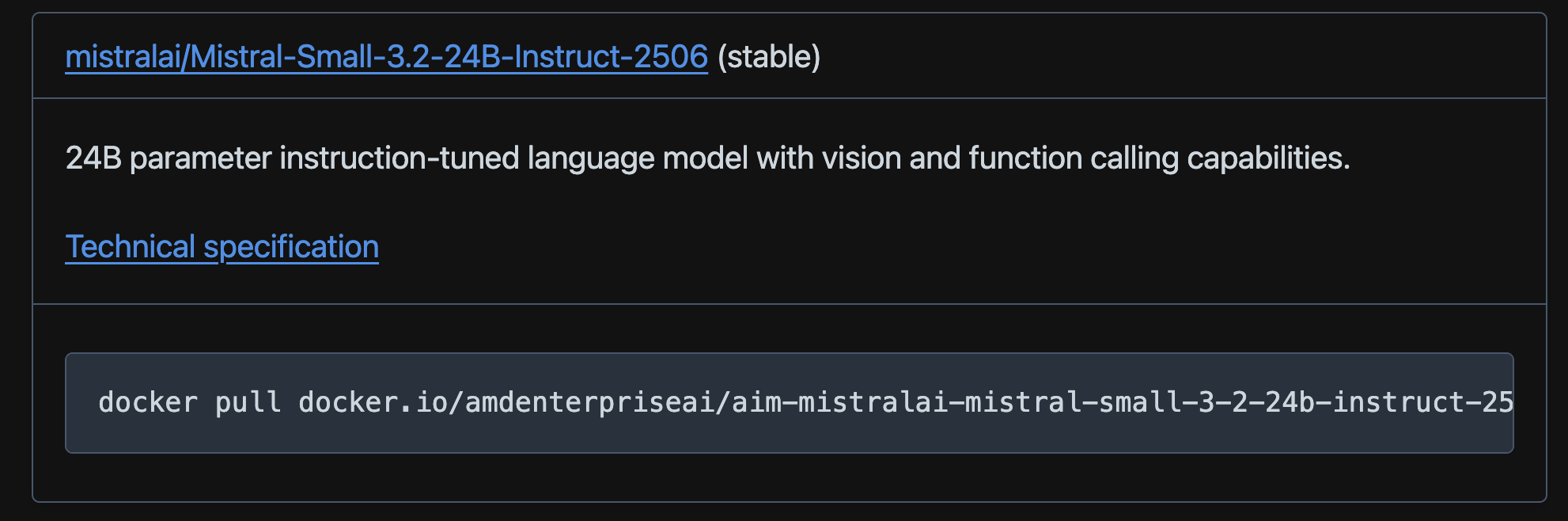
As seen on the card, the container image is amdenterpriseai/aim-mistralai-mistral-small-3-2-24b-instruct-2506:0.11.1. Version tags (for example 0.11.1) change with new releases.
Next, click the Technical specification link on the catalog card. The specification page tells you:
Supported capabilities (chat, text generation, and so on)
Available profiles: Pre-tuned configurations for specific GPUs, precisions, and latency/throughput targets
GPU count and supported hardware
To follow this guide, confirm the model has an optimized profile for your hardware. If it does not, choose a different model from the catalog.
For a high-level overview, review the Supported Accelerators table to see which AIMs are optimized for your hardware.
Pull the container image#
AIM images are hosted on Docker Hub under the amdenterpriseai organization. Images are public, so you do not need Docker Hub credentials to pull them.
Pull the image:
docker pull amdenterpriseai/aim-mistralai-mistral-small-3-2-24b-instruct-2506:0.11.1
Wait for the download to complete.
Docker experimentation#
AMD Inference Microservices (AIMs) abstract away the complexities of configuring and serving AI models. An AIM automatically selects optimized runtime parameters based on your environment variables, hardware, and model specifications. Before deploying, you can preview that selection without starting the server.
Explore profiles#
After pulling the container image, use list-profiles to see every pre-tuned configuration available for the model, and dry-run to preview which profile AIM would select. If you do not have accelerator access, you can override the detected accelerator model i.e. “simulate” your target hardware on your local machine. Set AIM_ACCELERATOR_MODEL to simulate a target accelerator (for example MI300X). If you do have accelerator access, see With accelerator access.
List available profiles:
Run the following command on your local machine to explore available profiles for MI300X:
docker run --rm \
  -e AIM_ACCELERATOR_MODEL=MI300X \
  amdenterpriseai/aim-mistralai-mistral-small-3-2-24b-instruct-2506:0.11.1 \
  list-profiles
The truncated output is shown in the Figure below. These results are for image version 0.11.1. Depending on the hardware setup, you might need to set -e AIM_ACCELERATOR_COUNT=1 (Override accelerator count for tensor parallel) to ensure the correct profile is selected.
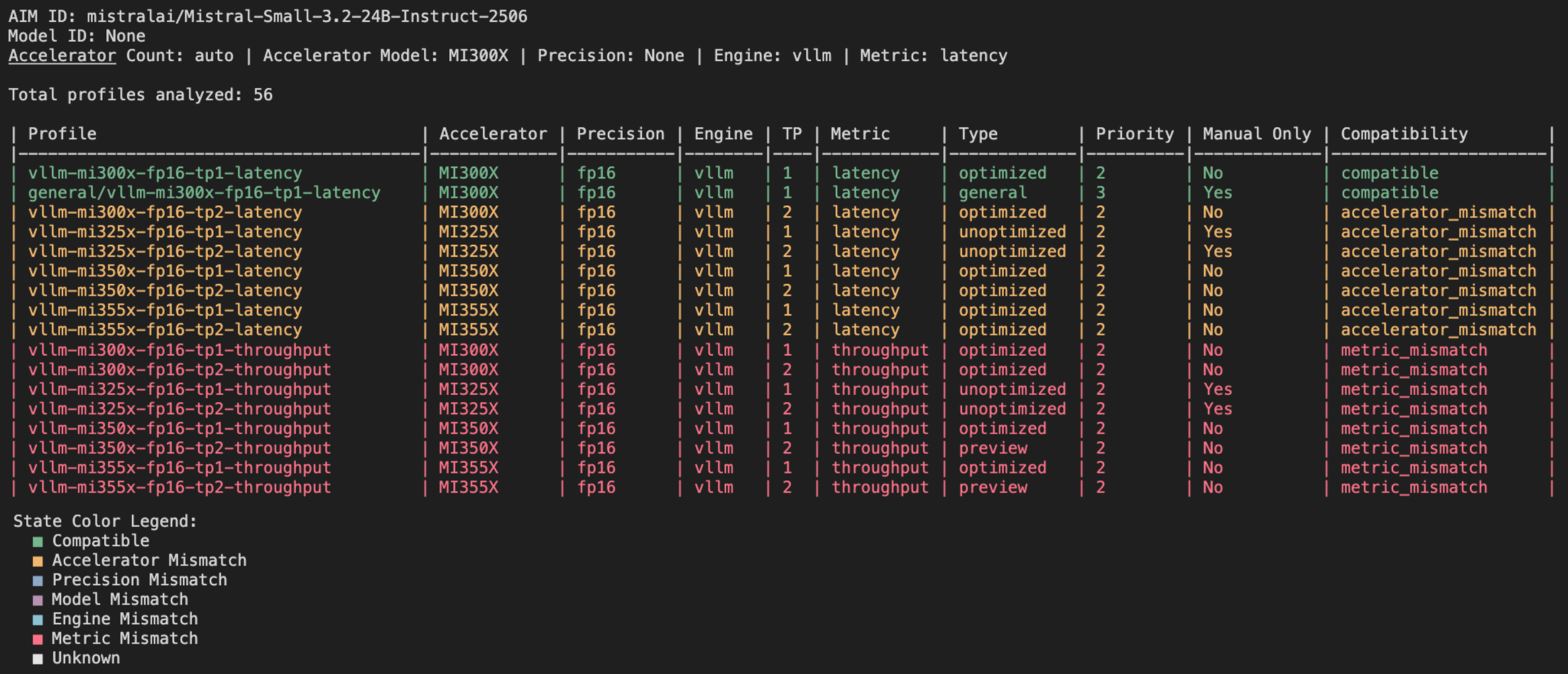
The output lists every profile bundled with the image. Each row shows the target accelerator, precision, inference engine, tensor parallelism (TP), performance metric, and profile type (optimized, general, unoptimized, or preview). Latency is picked as the performance metric by default. The Compatibility column shows whether a profile matches your current environment variables. The compatible profiles are candidates for automatic selection; mismatches (for example accelerator_mismatch or metric_mismatch) explain why others are excluded. See Supported Accelerators for profile type definitions.
Check profile selection results:
Use dry-run to preview which profile AIM selects and the command it would use to start the inference engine without launching the server:
docker run --rm \
  -e AIM_ACCELERATOR_MODEL=MI300X \
  amdenterpriseai/aim-mistralai-mistral-small-3-2-24b-instruct-2506:0.11.1 \
  dry-run
Truncated output:
- filename: vllm-mi300x-fp16-tp1-latency.yaml
  profile:
    aim_id: mistralai/Mistral-Small-3.2-24B-Instruct-2506
    model_id: mistralai/Mistral-Small-3.2-24B-Instruct-2506
    metadata:
      accelerator_count: 1
      accelerator_model: MI300X
      ...
    engine_args:
      ...
      ...
    env_vars:
      VLLM_ROCM_USE_AITER: '1'
      ...

...

exec python -m vllm.entrypoints.openai.api_server --model mistralai/Mistral-Small-3.2-24B-Instruct-2506 ......
You can also adjust other environment variables such as AIM_ACCELERATOR_TYPE (gpu (default) or cpu), AIM_PRECISION (precision, e.g. fp16), and AIM_METRIC (latency, throughput) to explore different deployment scenarios. See the Docker deployment guide for more examples.
With accelerator access#
On a machine with accelerator access, use the same commands but omit AIM_ACCELERATOR_MODEL. AIM detects the accelerator automatically. See below for an example with the list-profiles command:
docker run --rm \
  amdenterpriseai/aim-mistralai-mistral-small-3-2-24b-instruct-2506:0.11.1 \
  list-profiles
The results should be the same as before (if you are using MI300X).
Deploy with Docker#
Once you have validated profile selection, start the inference server on a machine with AMD GPU access. Certain models are gated
and require authentication to download them from Hugging Face. Mistral Small 3.2 24B is a public model, so no Hugging Face token is required. For gated models, add -e HF_TOKEN=<YOUR_HUGGINGFACE_TOKEN> to the command:
docker run \
  --device=/dev/kfd --device=/dev/dri \
  -p 8000:8000 \
  amdenterpriseai/aim-mistralai-mistral-small-3-2-24b-instruct-2506:0.11.1
Depending on the hardware setup, you might need to set -e AIM_ACCELERATOR_COUNT=1 to ensure the correct profile is selected.
(APIServer pid=1) INFO:     Started server process [1]
(APIServer pid=1) INFO:     Waiting for application startup.
(APIServer pid=1) INFO:     Application startup complete.
On first start:
AIM detects your GPU and selects a profile automatically.
Model weights are downloaded from Hugging Face.
The inference engine starts and listens on port
8000.
Wait until the logs show the API is listening on port 8000. The first startup is slower than subsequent runs while weights download from Hugging Face.
Verify the Docker deployment#
With the container running, confirm the server is healthy and send a test request.
List loaded models:
curl http://localhost:8000/v1/models
Truncated output:
{
  "object": "list",
  "data": [
    {
      "id": "mistralai/Mistral-Small-3.2-24B-Instruct-2506",
      "object": "model",
      "owned_by": "vllm",
      "root": "mistralai/Mistral-Small-3.2-24B-Instruct-2506",
    }
  ]
}
You should see mistralai/Mistral-Small-3.2-24B-Instruct-2506 in the response.
Send a chat request:
curl http://localhost:8000/v1/chat/completions \
  -H "Content-Type: application/json" \
  -d '{
    "model": "mistralai/Mistral-Small-3.2-24B-Instruct-2506",
    "messages": [
      {"role": "user", "content": "What is AI?"}
    ],
    "max_tokens": 100
  }'
Example output (truncated):
{
  "model": "mistralai/Mistral-Small-3.2-24B-Instruct-2506",
  "choices": [
    {
      "index": 0,
      "message": {
        "role": "assistant",
        "content": "Artificial Intelligence (AI) refers to the simulation of human ..."
      },
      "finish_reason": "length"
    }
  ],
  "usage": {
    "prompt_tokens": 7,
    "completion_tokens": 100,
    "total_tokens": 107
  }
}
Stop the container#
Press Ctrl+C in the terminal where the container is running, or stop it from another terminal:
docker ps          # find the container ID
docker stop <CONTAINER_ID>
Deploy with Kubernetes#
The following steps deploy the same AIM on a Kubernetes cluster. Run these commands from your local machine with kubectl configured for the cluster.
Confirm GPU availability (Instinct, Radeon)#
Check that your cluster exposes AMD GPUs:
kubectl get nodes -o json | jq '.items[].status.allocatable'
Look for "amd.com/gpu": "1" (or a higher number) in the output.
If GPUs are not visible, install the AMD GPU device plugin:
kubectl create -f https://raw.githubusercontent.com/ROCm/k8s-device-plugin/master/k8s-ds-amdgpu-dp.yaml
daemonset.apps/amdgpu-device-plugin-daemonset created
Create a namespace#
This guide deploys the workload to a namespace called demo. Create it with the command below. To use an existing namespace instead, update $namespace in the commands that follow.
kubectl create namespace demo
Set it as a variable for the rest of this section:
export namespace=demo
Create a Hugging Face secret#
A Hugging Face secret is optional for this public model. For consistency with gated-model deployments, this guide creates the hf-token secret and references it in the deployment manifest.
Create a secret named hf-token in the demo namespace:
kubectl create secret generic hf-token \
    --from-literal="hf-token=YOUR_HUGGINGFACE_TOKEN" \
    -n $namespace
secret/hf-token created
Create deployment and service manifests#
Create a directory for your Kubernetes manifests:
mkdir -p aim-quickstart && cd aim-quickstart
Using your preferred text editor, create and save the following as deployment.yaml:
apiVersion: apps/v1
kind: Deployment
metadata:
  name: minimal-aim-deployment
  labels:
    app: minimal-aim-deployment
spec:
  progressDeadlineSeconds: 3600
  replicas: 1
  selector:
    matchLabels:
      app: minimal-aim-deployment
  template:
    metadata:
      labels:
        app: minimal-aim-deployment
    spec:
      containers:
        - name: minimal-aim-deployment
          image: amdenterpriseai/aim-mistralai-mistral-small-3-2-24b-instruct-2506:0.11.1
          imagePullPolicy: Always
          env:
            - name: HF_TOKEN
              valueFrom:
                secretKeyRef:
                  name: hf-token
                  key: hf-token
          ports:
            - name: http
              containerPort: 8000
          resources:
            requests:
              memory: "16Gi"
              cpu: "4"
              amd.com/gpu: "1"
            limits:
              memory: "16Gi"
              cpu: "4"
              amd.com/gpu: "1"
          startupProbe:
            httpGet:
              path: /v1/models
              port: http
            periodSeconds: 10
            failureThreshold: 360
          livenessProbe:
            httpGet:
              path: /health
              port: http
          readinessProbe:
            httpGet:
              path: /v1/models
              port: http
          volumeMounts:
            - name: ephemeral-storage
              mountPath: /tmp
            - name: dshm
              mountPath: /dev/shm
      volumes:
        - name: ephemeral-storage
          emptyDir:
            sizeLimit: 256Gi
        - name: dshm
          emptyDir:
            medium: Memory
            sizeLimit: 32Gi
Create and save the following as service.yaml:
apiVersion: v1
kind: Service
metadata:
  name: minimal-aim-deployment
  labels:
    app: minimal-aim-deployment
spec:
  type: ClusterIP
  ports:
    - name: http
      port: 80
      targetPort: 8000
  selector:
    app: minimal-aim-deployment
Applying these manifests creates a Deployment named minimal-aim-deployment that runs the Mistral Small 3.2 24B Instruct AIM.
Note: If you need help creating the Kubernetes manifests see the public Github repository for examples and details.
Before applying, review deployment.yaml for a few key fields:
metadata.name: Deployment nameimage: The AIM container image from earlier in this guideHF_TOKEN: Loaded from thehf-tokensecret (required for gated models, optional for public ones)amd.com/gpu: Requests one AMD GPU for inference
If you skipped creating the Hugging Face secret, remove the HF_TOKEN environment variable block from deployment.yaml.
Deploy to the cluster#
Deploy the workload:
kubectl apply -f . -n $namespace
Expected output:
deployment.apps/minimal-aim-deployment created
service/minimal-aim-deployment created
Wait for the pod to reach Running and 1/1 Ready. The first startup can take several minutes while model weights download.
kubectl get pods -n $namespace
Truncated output:
NAME                          READY   STATUS
minimal-aim-deployment-...    1/1     Running
You can also monitor progress in k9s. Select the AIM pod and press d to describe the workload or l to view its logs.

Verify the deployment#
Port-forward the service to your local machine (leave this terminal open):
kubectl port-forward service/minimal-aim-deployment 8000:80 -n $namespace
Leave this terminal open while you verify the deployment. Open a new terminal and run the following command:
curl http://localhost:8000/v1/models
The /v1/models response should list the loaded model. Truncated output below:
{
  "object": "list",
  "data": [
    {
      "id": "mistralai/Mistral-Small-3.2-24B-Instruct-2506",
      "object": "model",
      "owned_by": "vllm",
      "root": "mistralai/Mistral-Small-3.2-24B-Instruct-2506",
    }
  ]
}
Then send a chat request:
curl http://localhost:8000/v1/chat/completions \
  -H "Content-Type: application/json" \
  -d '{
    "model": "mistralai/Mistral-Small-3.2-24B-Instruct-2506",
    "messages": [
      {"role": "user", "content": "What is AI?"}
    ],
    "max_tokens": 100
  }'
A successful response should return JSON like this (truncated):
{
  "choices": [
    {
      "index": 0,
      "message": {
        "role": "assistant",
        "content": "Artificial Intelligence (AI) refers to the simulation of human intelligence..."
      },
      "finish_reason": "length"
    }
  ],
}
Clean up#
To remove the deployment and service, run:
kubectl delete -f . -n $namespace
deployment.apps "minimal-aim-deployment" deleted
service "minimal-aim-deployment" deleted
Expose Anthropic API and use with Claude Code#
AIM images based on vLLM serve an Anthropic-compatible messages API alongside the OpenAI-compatible one you used earlier in this guide, so you can point Claude Code at a local AIM deployment instead of the hosted Anthropic API. The following endpoints are supported:
POST /v1/messages— Anthropic Messages API (streaming and non-streaming)POST /v1/messages/count_tokens— token counting without generating a response
Run AIM with the Anthropic-relevant engine args#
Three engine arguments matter specifically for the Anthropic layer: enable-prompt-tokens-details, tool-call-parser, and enable-auto-tool-choice. All of them are set through AIM_ENGINE_ARGS rather than a dedicated AIM variable:
docker run \
  --device=/dev/kfd --device=/dev/dri \
  -e AIM_ENGINE_ARGS='{"enable-prompt-tokens-details": true, "tool-call-parser": "mistral", "enable-auto-tool-choice": true}' \
  -e AIM_MODEL_ID="mistralai/Mistral-Small-3.2-24B-Instruct-2506" \
  -p 8000:8000 \
  -t amdenterpriseai/aim-base:2026.11.0
enable-prompt-tokens-details— populatescache_read_input_tokens/cache_creation_input_tokensin the Anthropic response’susageblock. Without it, those fields stay empty even though caching still happens internally.tool-call-parser/enable-auto-tool-choice— required for Claude Code’s tool use (file edits, bash commands, and so on) to round-trip through the Anthropictools/tool_choicefields. The parser must match a format the loaded model was trained on;mistralmatches Mistral-Small-3.2-24B’s tool-call format.AIM_MODEL_ID— specifies the model foraim-baseimage.
This example is based on aim-base image which does not serve a specific model out of the box. The aim-base is used in the example because it provides the most recent vLLM version. Even though the Anthropic API has been introduced in vLLM v0.11.1, newer versions are preferable because of apparent changes of API schema.
The API can be protected with an API key, but it is outside of the scope of this example.
Verify the Anthropic endpoints with curl#
Confirm the exact served model id first using the following command:
curl http://localhost:8000/v1/models
Send a message through the Anthropic Messages API. Note the header: even though the endpoint mimics Anthropic’s wire format, authentication is still enforced by the AIM/vLLM server, which expects the key as a bearer token rather than Anthropic’s own x-api-key header:
curl http://localhost:8000/v1/messages \
  -H "Authorization: Bearer my-secret-key" \
  -H "anthropic-version: 2023-06-01" \
  -H "Content-Type: application/json" \
  -d '{
    "model": "mistralai/Mistral-Small-3.2-24B-Instruct-2506",
    "max_tokens": 256,
    "messages": [{"role": "user", "content": "What is AI?"}]
  }'
Count tokens for the same request without generating a response:
curl http://localhost:8000/v1/messages/count_tokens \
  -H "Authorization: Bearer my-secret-key" \
  -H "anthropic-version: 2023-06-01" \
  -H "Content-Type: application/json" \
  -d '{
    "model": "mistralai/Mistral-Small-3.2-24B-Instruct-2506",
    "messages": [{"role": "user", "content": "What is AI?"}]
  }'
A successful /v1/messages response looks like:
{
  "id": "chatcmpl-...",
  "type": "message",
  "role": "assistant",
  "content": [
    {
      "type": "text",
      "text": "Artificial Intelligence (AI) refers to ..."
    }
  ],
  "model": "mistralai/Mistral-Small-3.2-24B-Instruct-2506",
  "stop_reason": "max_tokens",
  "usage": {
    "input_tokens": 7,
    "output_tokens": 256,
    "cache_creation_input_tokens": 0,
    "cache_read_input_tokens": 0
  }
}
Point Claude Code at the container#
With the container reachable on localhost:8000, redirect Claude Code’s Anthropic client to it instead of the hosted API. ANTHROPIC_MODEL sets the model Claude Code uses directly, while ANTHROPIC_DEFAULT_OPUS_MODEL, _SONNET_MODEL, and _HAIKU_MODEL map its internal Opus/Sonnet/Haiku tier aliases to one. Set all four to the same value, since a single AIM deployment serves only one model and there’s no way to know in advance which of these a given code path will read.
Linux / macOS / WSL (bash):
ANTHROPIC_BASE_URL=http://localhost:8000 \
ANTHROPIC_API_KEY=my-secret-key \
ANTHROPIC_MODEL=mistralai/Mistral-Small-3.2-24B-Instruct-2506 \
ANTHROPIC_DEFAULT_OPUS_MODEL=mistralai/Mistral-Small-3.2-24B-Instruct-2506 \
ANTHROPIC_DEFAULT_SONNET_MODEL=mistralai/Mistral-Small-3.2-24B-Instruct-2506 \
ANTHROPIC_DEFAULT_HAIKU_MODEL=mistralai/Mistral-Small-3.2-24B-Instruct-2506 \
claude
Windows (PowerShell):
$env:ANTHROPIC_BASE_URL = "http://localhost:8000"
$env:ANTHROPIC_API_KEY = "my-secret-key"
$env:ANTHROPIC_MODEL = "mistralai/Mistral-Small-3.2-24B-Instruct-2506"
$env:ANTHROPIC_DEFAULT_OPUS_MODEL = "mistralai/Mistral-Small-3.2-24B-Instruct-2506"
$env:ANTHROPIC_DEFAULT_SONNET_MODEL = "mistralai/Mistral-Small-3.2-24B-Instruct-2506"
$env:ANTHROPIC_DEFAULT_HAIKU_MODEL = "mistralai/Mistral-Small-3.2-24B-Instruct-2506"
claude
Setting ANTHROPIC_API_KEY is only necessary if the API is protected by API key. An alternative to setting these variables is to update them in Claude Code’s settings.json file with the respective values. To make sure it works, check the model name shown in the CLI — it should read mistralai/Mistral-Small-3.2-24B-Instruct-2506.